

WordPress and WooCommerce
How to add Tafsee Popup to WordPress and WooCommerce: Through a header-and-footer scripts plugin, so it survives theme updates.
Through a header-and-footer scripts plugin, so it survives theme updates.
What you need
- Your website added in Tafsee Popup, and its install code. Open Websites and click Show install code.
- Access to the place in WordPress and WooCommerce where site-wide code goes.
The code looks like this, with your own site key:
<script>
  (function (w, d, s, id) {
    if (d.getElementById(id)) return;
    var js = d.createElement(s); js.id = id; js.async = true;
    js.src = 'https://popup.beta.tafsee.com/embed/v1.js';
    js.dataset.site = 'pk_your_site_key';
    d.head.appendChild(js);
  })(window, document, 'script', 'tafsee-popup');
</script>
Steps
- Plugins → Add New → search for a header and footer scripts plugin, install and activate it.
- Paste the snippet into the footer scripts box.
- Save, then hard-refresh a public page.
- Back in Tafsee Popup, open Websites and click Check my site.
The same steps are inside the app, next to your install code, on the website's Install and guides tab.
Good to know
- Using a plugin for header and footer scripts keeps the code when the theme is updated.
- WooCommerce runs on WordPress, so the same steps apply. The rule Adds to cart recognises WooCommerce's add-to-cart buttons.
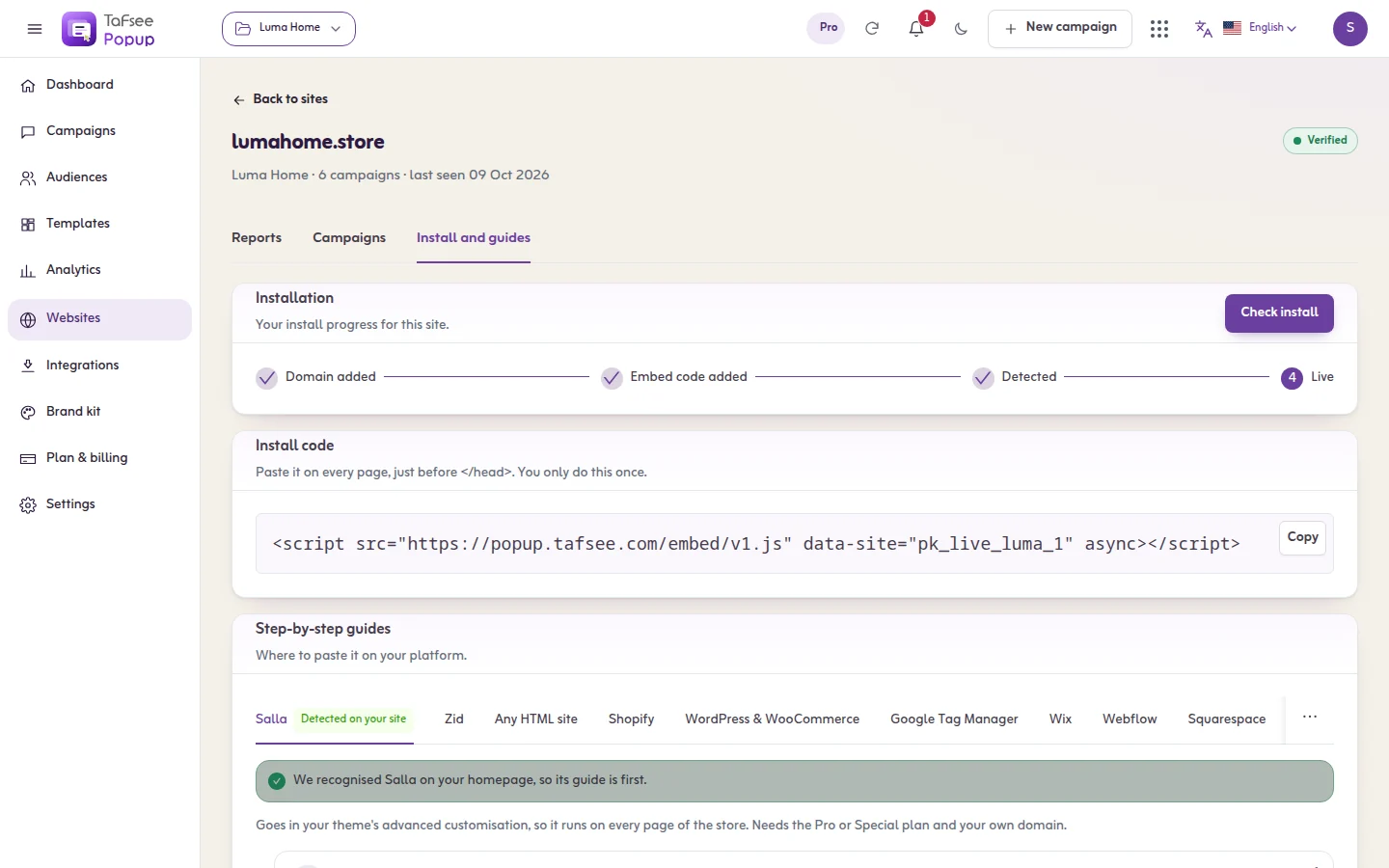
What you should see
The website shows Code installed. Publish a campaign set to As soon as the page opens and open your site in a private window: the popup appears.
If it does not work
- The check does not find the code: a cache plugin still serves old pages. Clear the cache, then check again.
- A security or optimisation plugin removes or delays scripts: exclude the Tafsee script in that plugin's settings.
- Make sure the code is on every page, once.
- Add ?tafsee-debug=1 to a page address of your site. The test panel lists every campaign and what it is waiting for.
- More causes and cures: The install check fails.
Related
Last updated: October 12, 2026
