
Leads and segments
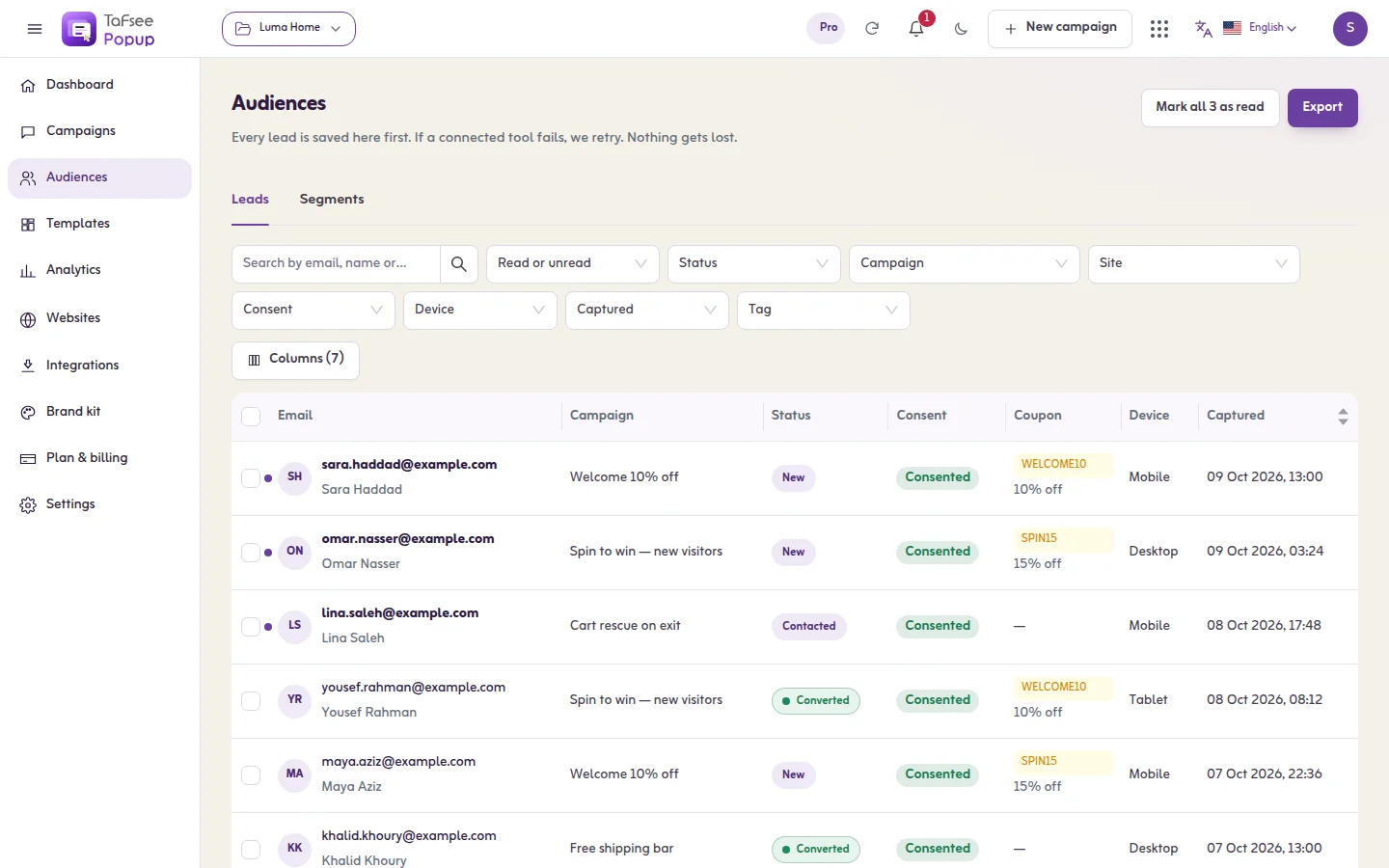
Every lead in one list: search, filter, read the delivery state, open a lead, export to CSV, and group chosen leads into a segment.
Every lead is saved in Tafsee first. Then it is sent to the tools you connected. Open Audiences in the left menu; the page has two tabs, Leads and Segments.
What you need
- To look and export: a role that can view leads.
- To change, delete or send leads again: a role that can manage leads.
The leads list
- The bar at the top shows Total leads: and the delivery filter.
- Search by e-mail, name or company.
- Filter by Status, Campaign, Site, Tag, Consent, Device and Read or unread.
- Filter by the days they signed up under Captured between, with shortcuts for today and the last 7, 30 and 90 days.
- Click the columns button to choose the columns to show.
- A new lead is marked Not opened yet until someone opens it.
The list shows your newest leads. Search finds any lead, and the export includes them all.
The Delivery column
Each row says in one word whether the lead reached your tools: Delivered, Retrying, Failed or Not sent to a tool. See Lead delivery and Send again.
Open a lead
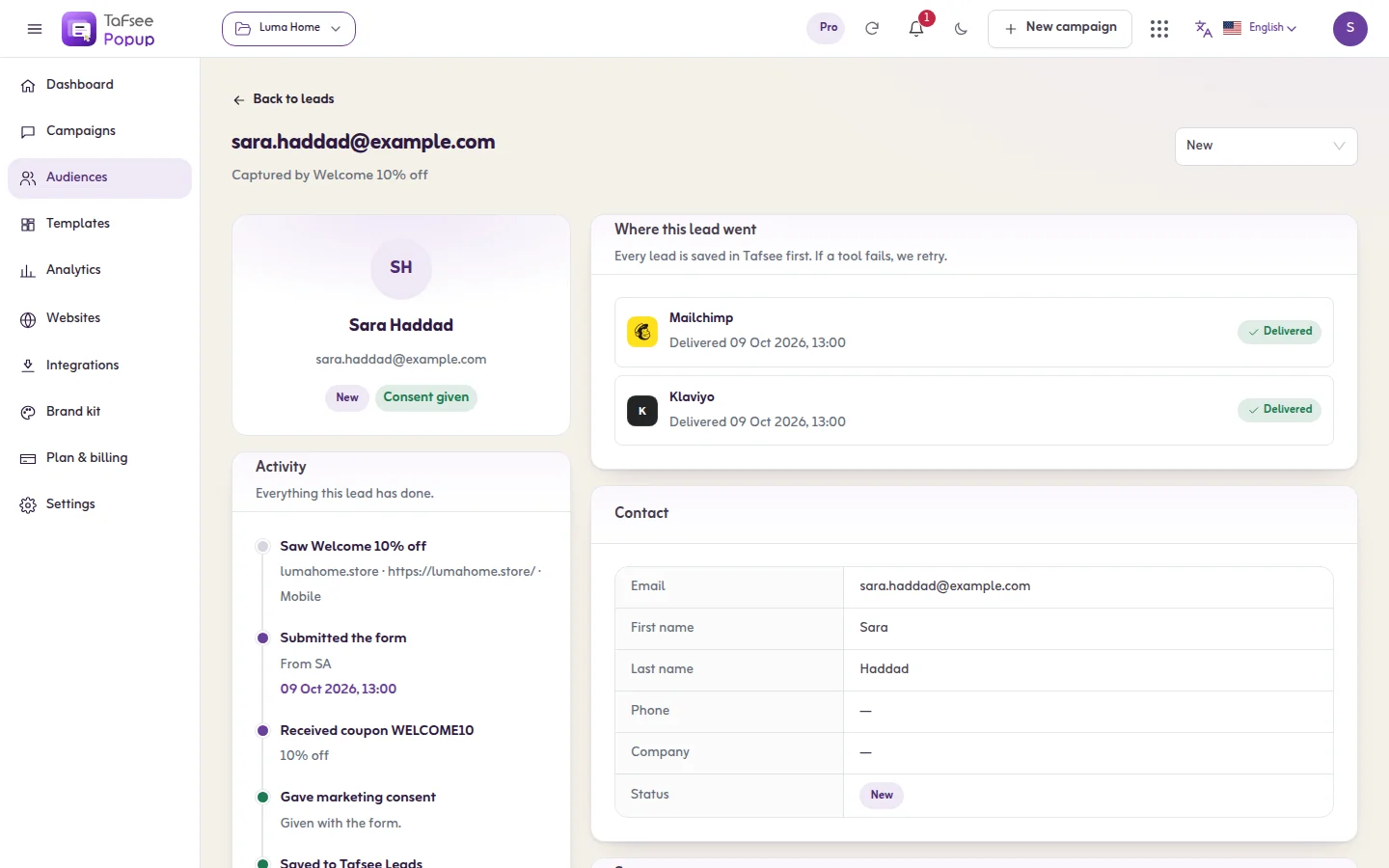
- Contact: the contact details and the consent.
- Source: the campaign, page and device it came from.
- Custom fields: answers to your own questions, survey answers and quiz results.
- Activity: what the lead did, in order.
- Where this lead went: each connected tool and what happened there.
Act on leads
Tick one or more rows, then:
- Mark as contacted, Mark as read or Mark as unread.
- Send again, for leads that did not reach a tool.
- Convert to segment.
- Export selected.
- Delete. Deleting leads cannot be undone.
A lead's status is New, Contacted, Converted or Unsubscribed.
Export
- Click Export.
- Tick the columns you want. The file is a CSV and downloads straight away.
- Leave Include unsubscribed off unless you need those people in the file.
Segments
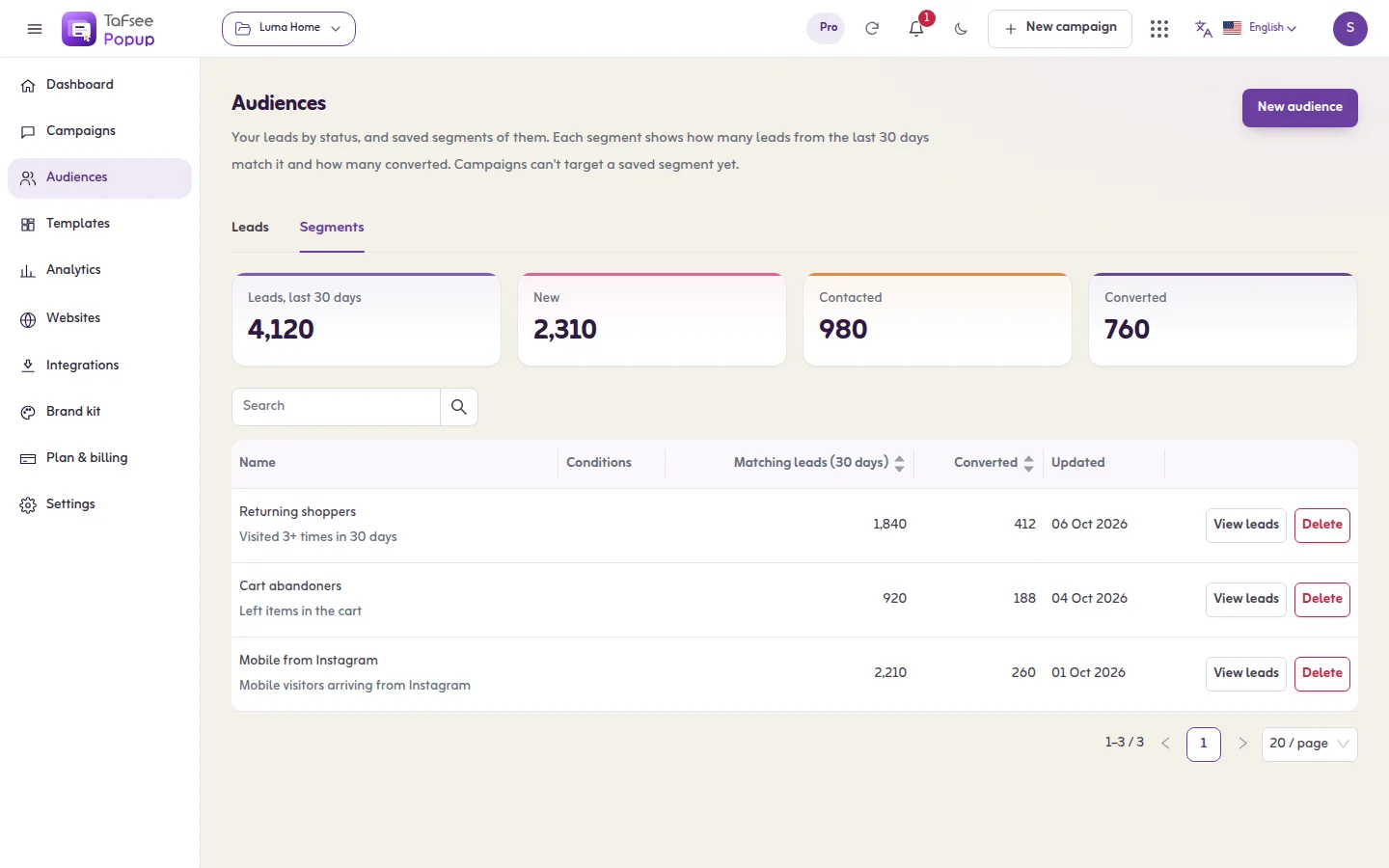
- To make a segment from people you choose: tick leads in the list and click Convert to segment. Choose A new segment and name it, or A segment I already have to add them to one you made earlier. Leads already in it are not added twice.
- New segment on the Segments tab creates a named segment.
- Each segment shows how many leads from the last 30 days match it and how many converted. Click View leads to see its leads.
Campaigns cannot target a saved segment yet. To choose which visitors see a campaign, use the questions in Show when: the three questions.
If it does not work
- No leads match these filters. Click the clear button of the filter bar.
- The export will not start and the app asks you to upgrade: you are past this month's lead allowance. The leads are safe. See Plan, billing and limits.
- A lead shows a code from another campaign: a lead is one person, kept once, and keeps the first code they were given.
- You do not see the action buttons: your role can look but not change leads.