
Creating a campaign
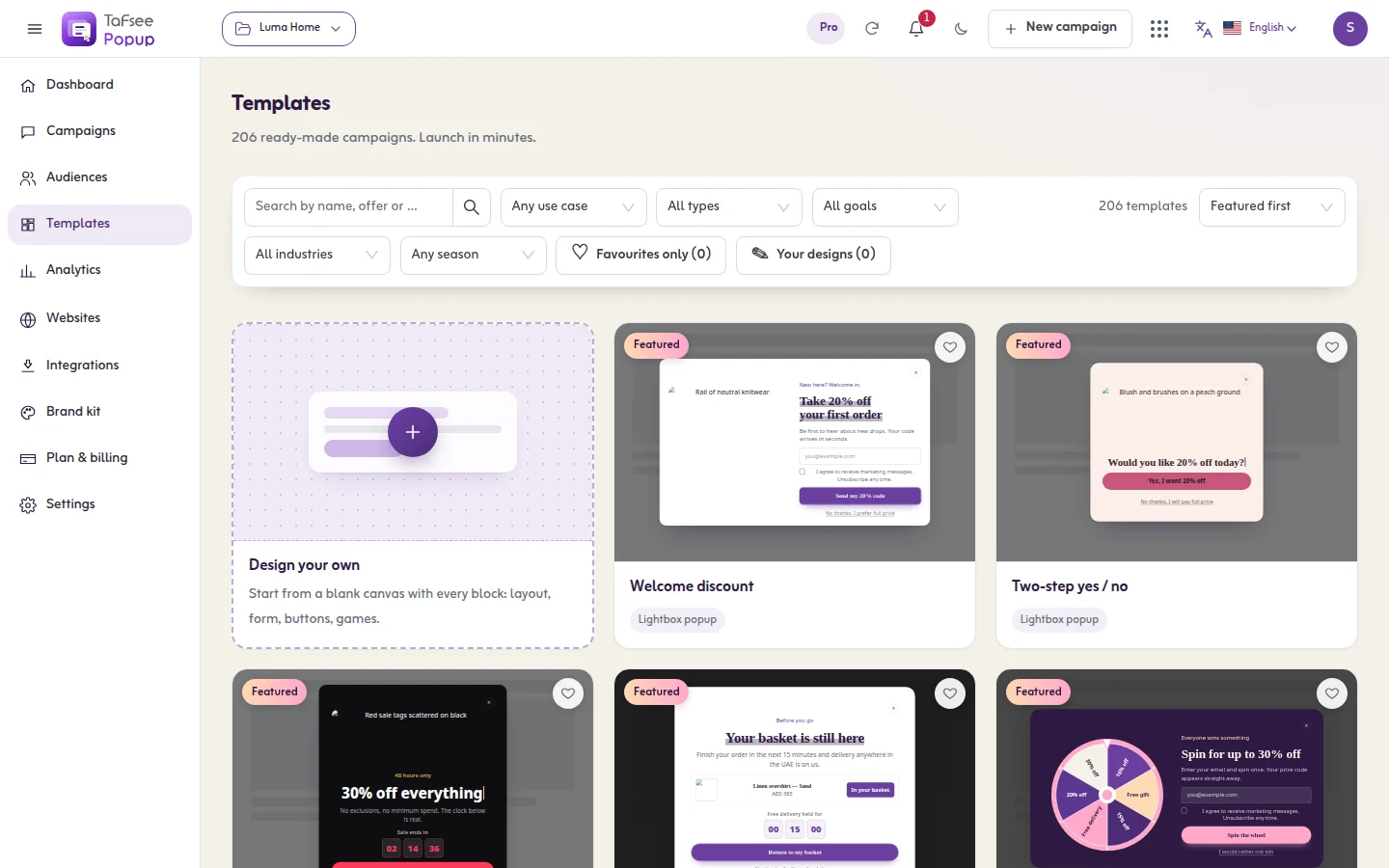
Start a campaign on one page: pick a type, filter the templates, preview one, and open it in the editor. Or start from a blank canvas or your own saved design.
A new campaign starts from a template. One click on a template creates the campaign and opens the editor.
What you need
- At least one website added. Without one the app shows Add your site first.
- A role that can create campaigns.
Steps
- Click New campaign in the left menu, or open Templates.
- On the left, under Campaign type, pick a type. The types are grouped: Overlays, Gentle formats, Gamified and Pages and blank canvas. See the Campaign types section for each one.
- With two or more websites, choose the website in Website at the top.
- Narrow the list. Use the search box (Search by name, offer or keyword), the use cases under What do you want to do?, and the filters Goal, Industry, Season and Language.
- Click Preview on a card to look closer (see below).
- Click Use this template. A short message appears while the campaign is set up, then the editor opens.
The preview
- Watch it work plays the template the way a visitor meets it: it appears, they answer, they see the thank-you.
- Each screen shows every screen on a computer and a phone side by side.
- What it's for tells you what the template is for, its format, its screens and what it asks the visitor for.
- Same look in other types offers the same style as another kind of campaign.
Filters that find nothing
If a search finds nothing in the type you picked, the app offers to look in all types. Clear filters clears the filters but keeps the type.
Favourites
Click the heart on a card to add it to favourites. Tick the favourites filter to see only those.
Your own designs
- To start with nothing, open your designs filter and choose Design your own: Start from a blank canvas with every block: layout, form, buttons, games.
- To reuse a campaign you made: open it in the editor, open Details, and under Save as my template click Save template. It then appears among the templates with the badge Your design.
- Deleting a saved design does not change campaigns already made from it.
What you should see
The editor opens on Design with your new campaign as a draft. A draft is seen only by you until you publish.
After it is created
- Rename it: hover the title on the campaign page and click the pencil.
- The campaign page says which template it was started from.
- The campaign type cannot be changed after creation. To try another type, create a new campaign, or use the same look in another type from the preview.
If it does not work
- Couldn't create the campaign. Try again. Check your connection and try once more.
- The button is greyed out: your role can look but not create. Ask an admin.
- You reached the number of live campaigns in your plan: you can still create drafts. See Plan, billing and limits.
Related
Last updated: October 12, 2026