
Organisations and websites
How organisations, websites and campaigns fit together, and how to add, check, open and remove a website.
An organisation holds your websites, campaigns, leads, team and billing. A website is one address where your popups run. Every campaign belongs to one website.
What you need
- A role that can manage sites and settings. Other roles see the pages but cannot change them.
Add a website
- Open Websites and click Add a website.
- Type the address in Website address, for example yourstore.com.
- Optional: give it a Name (optional). Only you see this name.
- Click Add website. The install code for this website appears straight away.
Each website has its own install code. Do not reuse the code of one website on another.
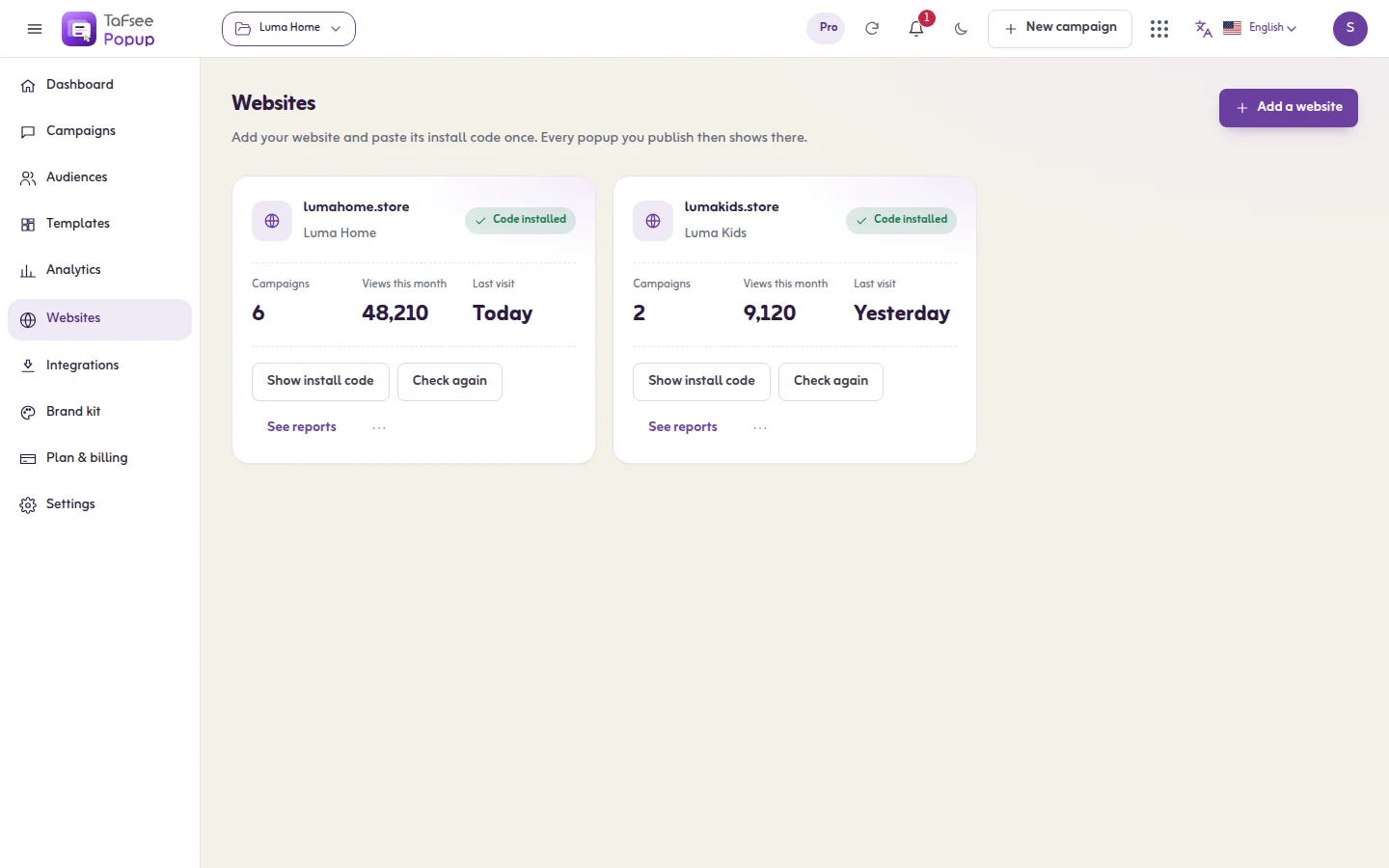
Read a website's card
- Code installed or Needs the install code tells you whether the code was found.
- The card shows how many campaigns it has, its views this month and when it was last seen.
- Show install code opens the code again. Check my site runs the install check.
Open a website
Click a website to open its page. It has three tabs: Reports, Campaigns and Install and guides. The last one holds the install code, the step-by-step guide for your platform and the note for your developer.
Several websites
When you have two or more websites, the page where you start a new campaign shows a Website picker at the top. It starts on the website you used last in this browser. How many websites you can add depends on your plan; see the pricing page.
Remove a website
- Open the website and click Remove.
- Read the message: Remove this site? Its campaigns are paused, not deleted: you can move them to another website from Go live.
- Confirm. To put one of its campaigns live again, open that campaign's Publish step, and under Choose a website pick another website and click Move here. Its statistics come with it.
Change organisation
Use the organisation switcher in the top bar. If you open a link to a campaign, lead or website that lives in another organisation, the app says so and offers to switch.
If it does not work
- This site has a different Tafsee install code, probably from another workspace. Replace it with this site's code, then check again.
- The website stays on Needs the install code: see The install check fails.