

Settings
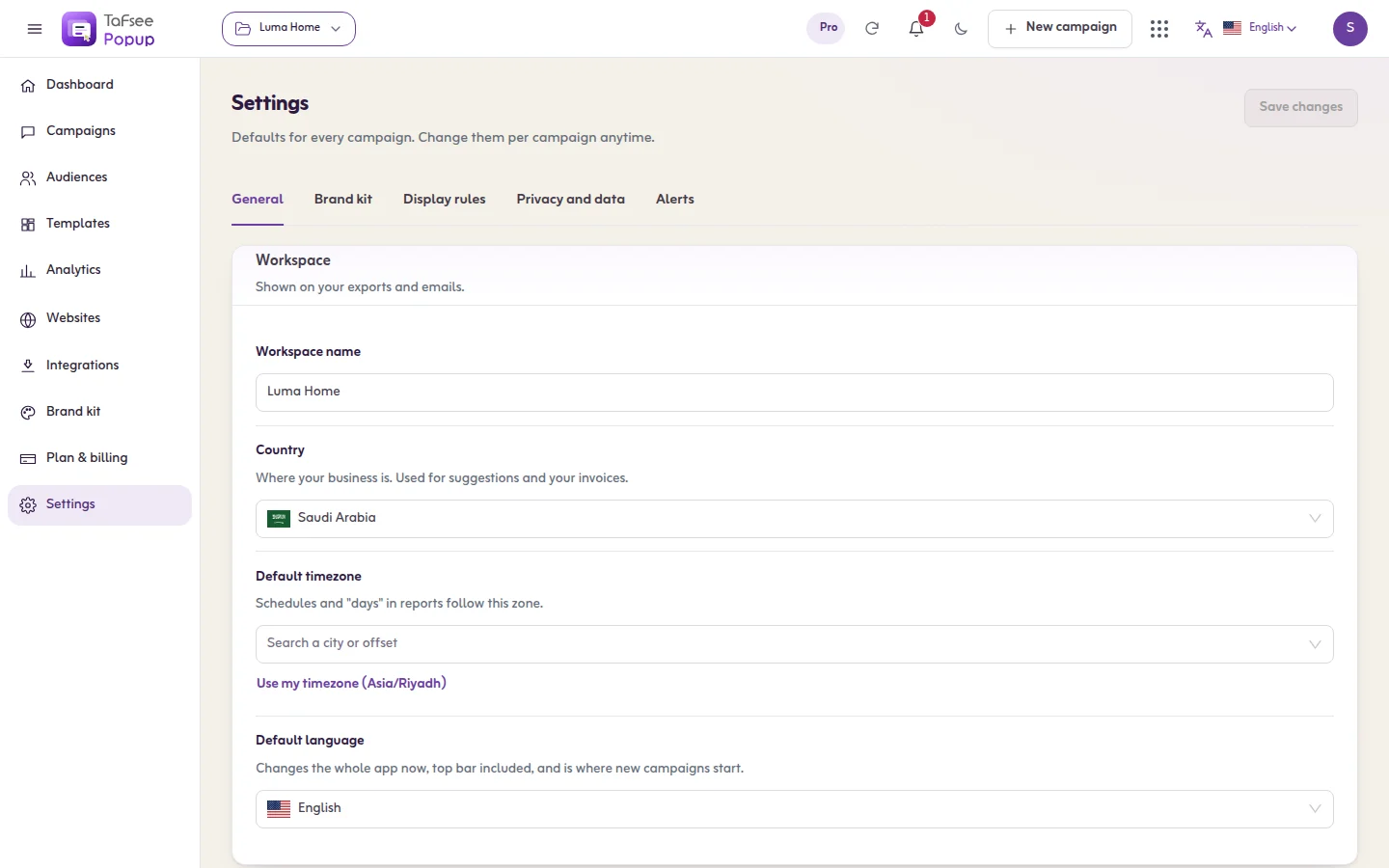
The four settings tabs: General, Display rules, Privacy and data, and Alerts. They apply to every campaign in the organisation.
Settings in the left menu holds what applies to every campaign. Each campaign still has its own rules on top.
What you need
- A role that can manage settings. Other roles see the tabs as view only.
General
- Workspace name: shown on your exports.
- Country: Where your business is. Used for suggestions and your invoices.
- Default timezone: Schedules and "days" in reports follow this zone.
- Default language: Changes the whole app now, top bar included, and is where new campaigns start. See Languages, Arabic and right-to-left.
Display rules
These apply on all your websites, on top of each campaign's own rules.
- Never show campaigns on these pages: Type a path and press Enter. /checkout covers every page under it; use * for any part, like /account/*.
- Time between two popups: After a visitor sees one popup, another will not open on its own until this time has passed. The choices run from No gap to 1 day.
- Stop showing campaigns to people who signed up: Once a visitor signs up through any campaign, campaigns no longer open for them on their own. Links you add still open them.
Privacy and data
- GDPR mode: Adds a required consent box to any form that asks for an email and does not already have one.
- Consent box wording: Leave empty to use our wording in the visitor's language.
- Respect Do Not Track: Visitors whose browser sends Do Not Track or Global Privacy Control see no campaigns and are not counted.
- Anonymise IP addresses: Hides part of each visitor's IP address before saving it.
- Lead retention (days): Keep forever unless your privacy policy says otherwise. Older leads are deleted every day.
- Don't count visits from these IP addresses: Add your office or your own IP so testing does not change your numbers. Type an address and press Enter.
- Help every store convert better: your anonymous patterns help the suggestions all stores get. Only counts are pooled.
- Erase a person’s data: see Privacy and data.
Alerts
Choose which problems the bell in the top bar warns you about. Alerts show in the app.
- A website stops sending visits: No visit in 24 hours from a website with live campaigns. Usually the install code was removed.
- Leads can't reach a connected tool: A lead could not be sent to Mailchimp, HubSpot or another tool in the last 7 days.
- Your discount codes are running out: Fewer than 20 codes left in a list you uploaded for a live campaign.
- You're close to your plan's limit: You have used 80% or more of something your plan includes.
Other places in the left menu
- Brand kit: see Brand kit.
- Plan & billing: see Plan, billing and limits.
What you should see
After a change, the message Settings saved appears. Changes to display rules reach your website shortly after.
If it does not work
- Couldn't save your settings. Try again.
- A campaign does not show on a page: check Never show campaigns on these pages. A path listed there hides every campaign on that page.
- A second popup does not open: check Time between two popups.
Related
Last updated: October 12, 2026
