

The editor at a glance
The three steps of the editor (Design, Where & when, Publish), what each part of the design screen does, and how saving, undo and preview work.
The editor is where you make a campaign yours. It has three steps, shown at the top: Design, Where & when and Publish.
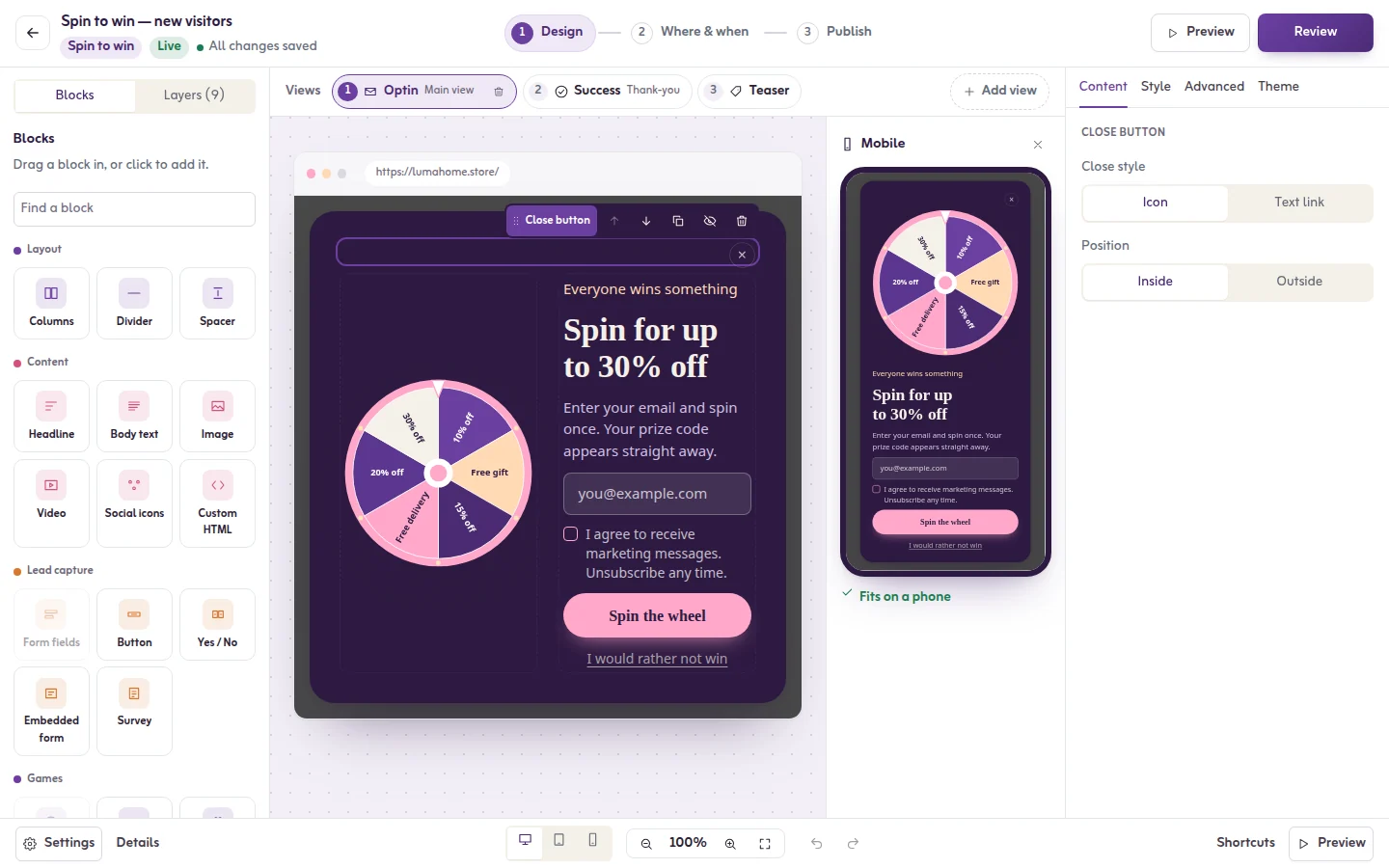
Open the editor
- A new campaign opens in the editor by itself. See Creating a campaign.
- For an existing campaign, click Edit campaign on its page, or Continue editing on a draft in the list.
The top bar
- The back button returns to the campaign.
- The campaign name: click it to rename.
- The three steps. Click one to go there.
- The save state, for example All changes saved. Changes save automatically as you work.
- Preview: see the popup as a visitor would, without the editing marks.
- The button that publishes. It reads Review, Go live or Publish changes depending on where you are.
The Design step
- Left: two lists, Blocks and the layers. Blocks are what you can add. Layers are what the popup already holds; drag a row to reorder.
- Middle: the popup itself, as it will look. Type straight on headlines, texts and buttons. Drag an element to move it.
- Above the popup: the pages of the popup (main page, thank-you and others). See Pages of a popup: main, thank-you and Yes / No.
- Right: the settings of what you clicked, in the tabs Content, Style and Advanced. With nothing selected, the Theme settings of the whole campaign.
- Show mobile puts a phone preview beside the computer one.
- The bar at the bottom has Undo, Redo, the zoom (Fit to screen is the usual choice), Shortcuts, Settings and Details.
Work on the popup directly
- Click a headline, a text or a button on the popup and type.
- Drag an element to move it above or below another.
- Drag the edge of the popup to change its width. In a two-column popup, drag the line between the columns to change how they share the width.
- Click an element once to open its settings on the right.
Saving
Changes save automatically as you work. If saving fails, the top bar says so and tries again.
- Leaving with changes not yet saved asks you first: Stay, Leave without saving or Save and leave.
- A teammate saved this campaign after you opened it: Saving here would undo their changes, so autosave is paused. Reload to see their version, then make your changes again.
Keyboard
Open Shortcuts in the bottom bar for the list. You can move a selected block up or down and clear the selection from the keyboard.
A live campaign
Editing a live campaign does not change what visitors see until you click Publish changes. See Publishing, pausing and scheduling.
If it does not work
- Couldn't open this campaign: We couldn't reach Tafsee just now. Your campaign is safe. Try again in a moment.
- You cannot change anything: your role is view only.
- A block will not go where you drop it: drop it onto a row in the layers list to place it next to that row.
Related
Last updated: October 12, 2026
