

Getting started
From sign-up to your first live popup: create the organisation, add your website, set your brand, install the code and publish.
Tafsee Popup shows popups, bars, slide-ins and games on your website and saves every lead it collects. This guide takes you from sign-up to a live campaign. Each step links to a longer article.
What you need
- An e-mail address to sign up with.
- The address of your website, and a way to paste one piece of code into it (or someone who can do it for you).
1. Sign up and choose an organisation
- Click Start free on this site and sign up. You sign in through Tafsee My Account, the same account as other Tafsee apps.
- The first screen asks Where should Popup live? Pick an organisation you already belong to, or fill in Organisation name, Country, Timezone and Language and click Create and continue.
Your team and billing stay with the organisation. Popup data stays separate from other Tafsee apps.
2. Tell Popup about your store
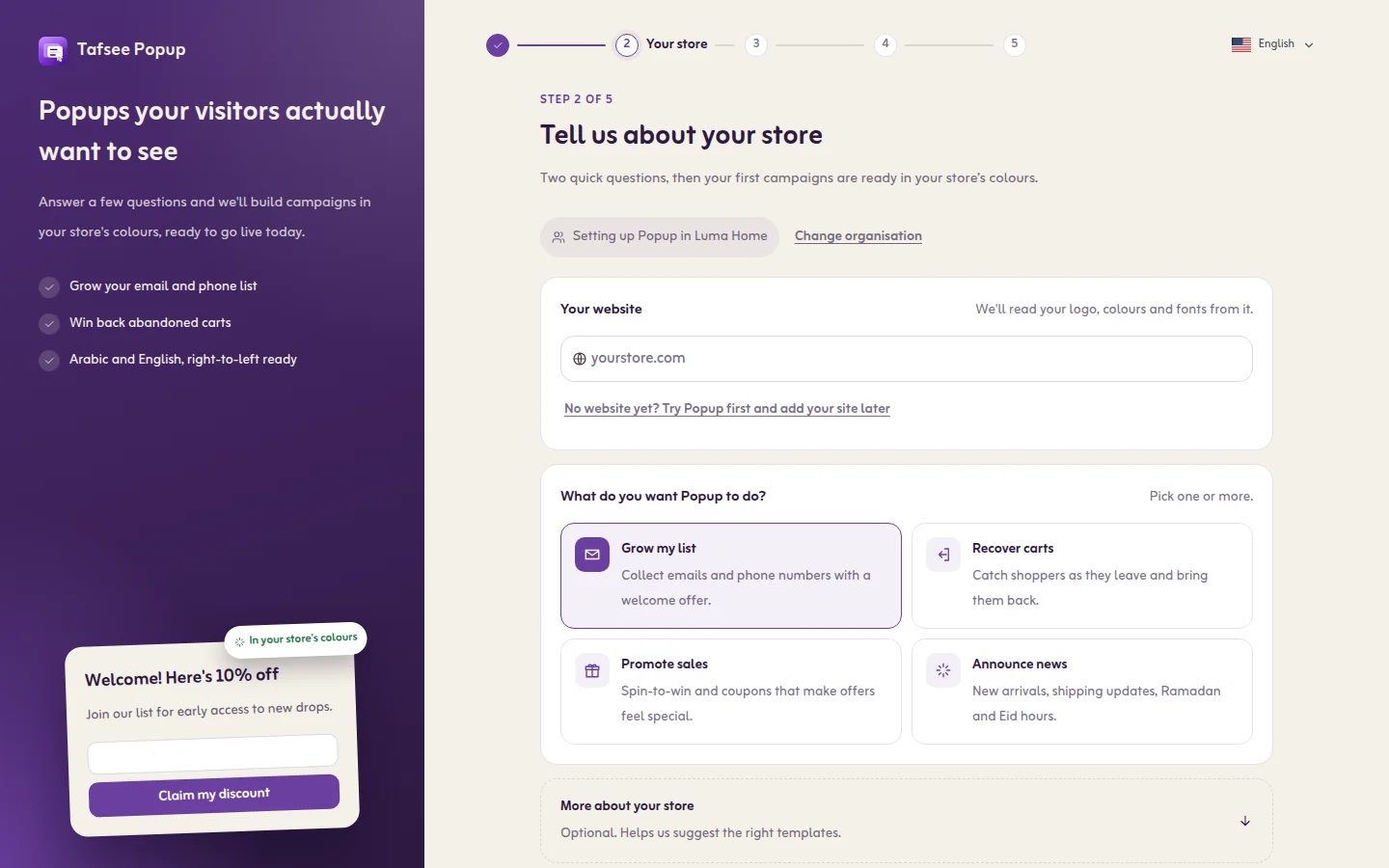
- Under Tell us about your store, type your address in Your website. Popup reads your logo, colours and fonts from it.
- Choose your Store platform.
- Under What do you want Popup to do? pick one or more: Grow my list, Recover carts, Promote sales, Announce news.
- Optional: open More about your store and set Industry, Monthly visitors and Languages of your site. This helps Popup suggest templates.
- Click Continue. You can also click Skip for now and answer later.
3. Match your brand
The last step is Match Popup to your brand. Check the colour and fonts Popup found, then click Finish and open Popup. Nothing is installed on your site in this step. To do it later, click Skip this, I will set my brand later; you can set it at any time in Brand kit.
4. Add your website and install the code
- Open Websites in the left menu and click Add a website.
- Copy the install code and paste it once on every page of your site. See Installing the code.
- Click Check my site. The website shows Code installed when the code is found.
5. Make and publish a campaign
- Click New campaign, pick a campaign type on the left and click Use this template on a template. The editor opens.
- In Design, click any text on the popup and type your own words.
- In Where & when, answer the three questions: when it appears, who sees it, how often.
- In Publish, look at the checks and click Go live.
What you should see
The campaign page shows Nice, your first popup is live. Open your website in a private window: the popup appears at the moment you chose. Numbers appear on the campaign page as visitors see it.
If it does not work
- The popup does not appear: open the campaign and click Why isn't it showing?. See Why isn't my popup showing?.
- The install check does not pass: see The install check fails.
Related
- Creating a campaign
- Show when: the three questions
- Publishing, pausing and scheduling
- Plans and prices are on the pricing page.
