

The editor
Design a popup: type on it, add blocks, pictures, forms and games, set colours, fonts, sizes and phone settings, and build its thank-you and Yes / No pages.
Articles in this topic
Open first article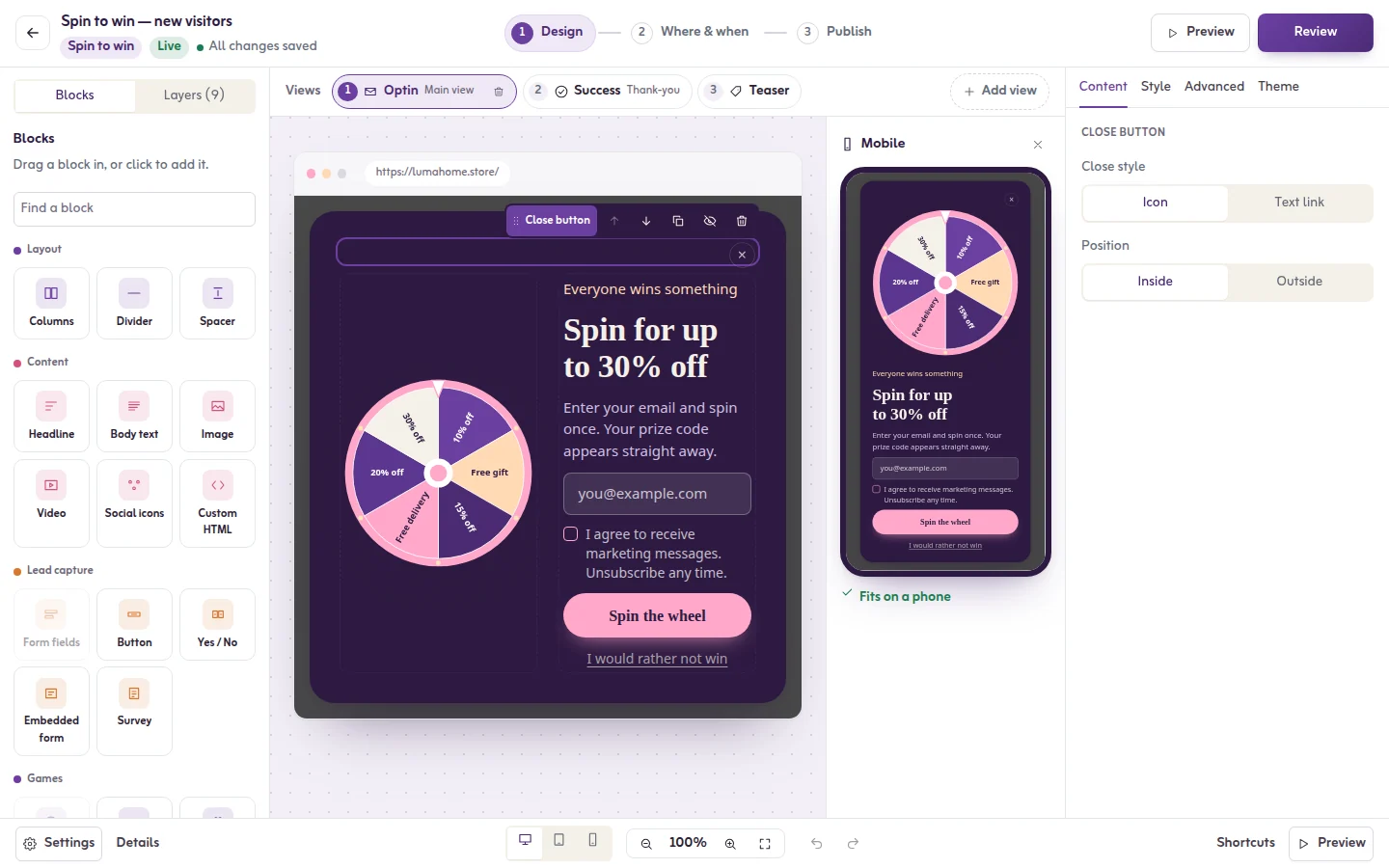
The editor at a glance
The three steps of the editor (Design, Where & when, Publish), what each part of the design screen does, and how saving, undo and preview work.
Read articleTyping on the popup and formatting text
Click the words on the popup and type. Select words to make them bold, italic, underlined, coloured or a link, and add a headline effect.
Read articleBlocks, one by one
Every block you can add to a popup, in the five groups of the block list: layout, content, lead capture, games and persuasion, and what each one does.
Read articleImages and uploads
Add a picture from the stock photos, from your own uploads or from a link, set how it fits, and manage the pictures you uploaded.
Read articleColours, fonts and themes
Recolour a whole campaign with a palette, match it to your logo, pick a font pair, and check that every line is easy to read.
Read articleBackground, size and position
Fill the popup with a colour, a gradient or a photo, set its width, padding, corners, border and shadow, and choose where it sits on the screen.
Read articlePhone settings
Check the phone preview, give the popup its own width, padding and text size on phones, hide a block on phones, and pass the phone check before going live.
Read articlePages of a popup: main, thank-you and Yes / No
A popup can have several pages: the main page, a Yes / No question, a thank-you page and a teaser. Add, design, reorder and remove them.
Read articleThe teaser tab
A teaser is a small tab on the page that opens the popup. Show it before the popup, after the popup is closed, or both, and choose its place and shape.
Read articleChange look
Dress a campaign in the look of another template without losing what you wrote: your words, form, codes, games and pictures stay.
Read articleCampaign settings and custom code
How a popup can be closed, whether the page scrolls behind it, internal notes, saving the design as your template, and custom CSS and JavaScript.
Read articleForms and every field type
Add and order form fields, choose each field's type, where its answer is saved, validation, the form layout, the button and what happens after sign-up.
Read articleConsent and the privacy line
Add a consent tick box to a form, show a privacy line that links to your policy, and require consent on every form with GDPR mode.
Read articleCountdown timer
Add a countdown that restarts for each visitor, or one that ends for everyone at a fixed date and time.
Read article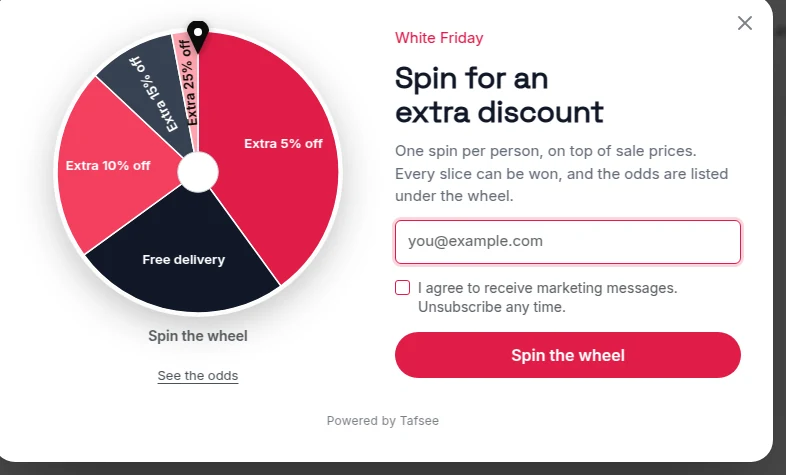
Spin wheel
Set the prizes of a spin wheel, the chance and code of each slice, fill it from a discount range, and keep it to one spin per visitor.
Read article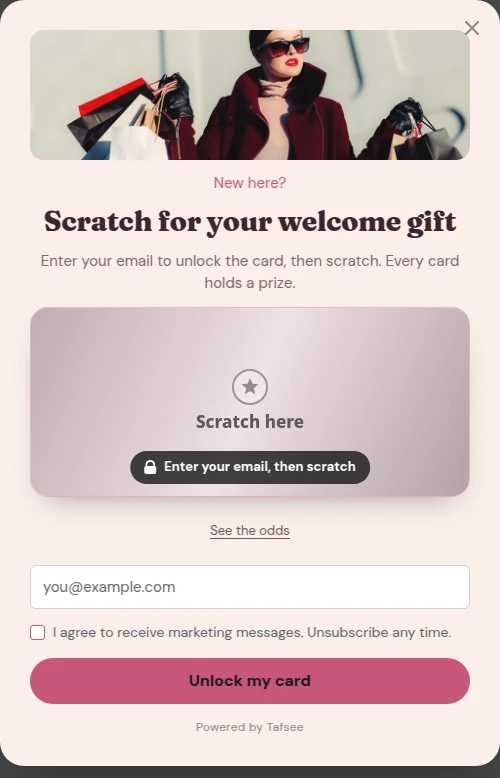
Scratch card
A prize hidden under a foil the visitor scratches: set the prizes and their chances, the foil's colour and words, and the card's height.
Read article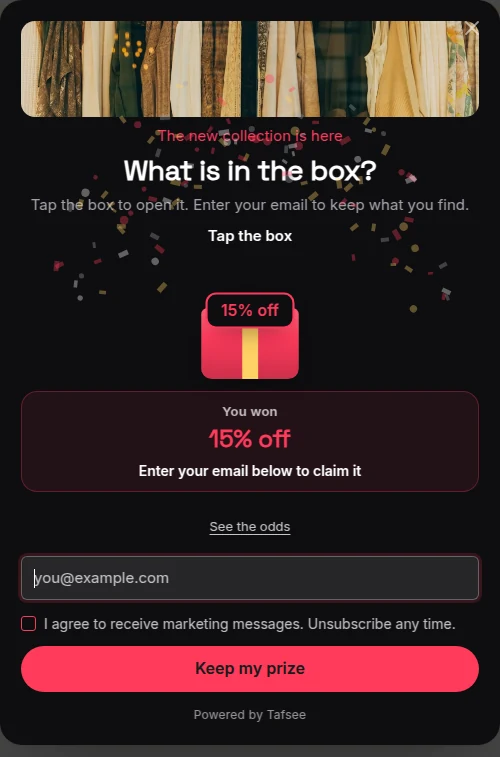
Gift boxes and the mystery box
Visitors pick a gift box and open it to find a prize. With one box it becomes a mystery box that shakes before it opens.
Read article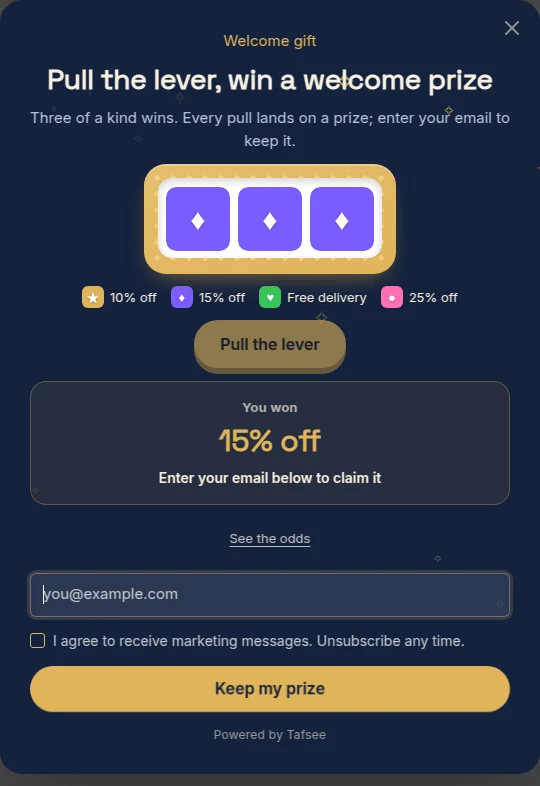
Slot machine
Three reels and a lever: set up to eight prizes, each with its own symbol, the lever's label and the machine's colour.
Read article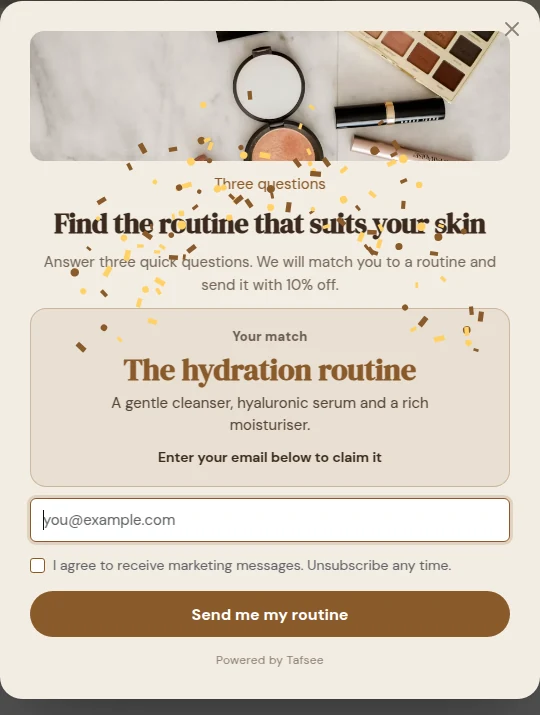
Quiz
A few questions that lead to a result: write questions and answers, tie each answer to a result, and use the saved answers to group your leads.
Read articleProduct, video and social icons
Show a product card with a price and a button, a YouTube, Vimeo or MP4 video, and icons that open your social pages or share the page.
Read article

Lead Generation
Tafsee Popup
Popups, spin-to-win wheels, countdown bars and exit-intent offers for any website — in English and native Arabic.