

Managing campaigns
Find, filter, start, pause, duplicate, archive and delete campaigns, and read each campaign's page.
Campaigns lists every campaign, with its website, the devices it shows on, and its visitors, conversions and conversion rate. Figures on each row are all time.
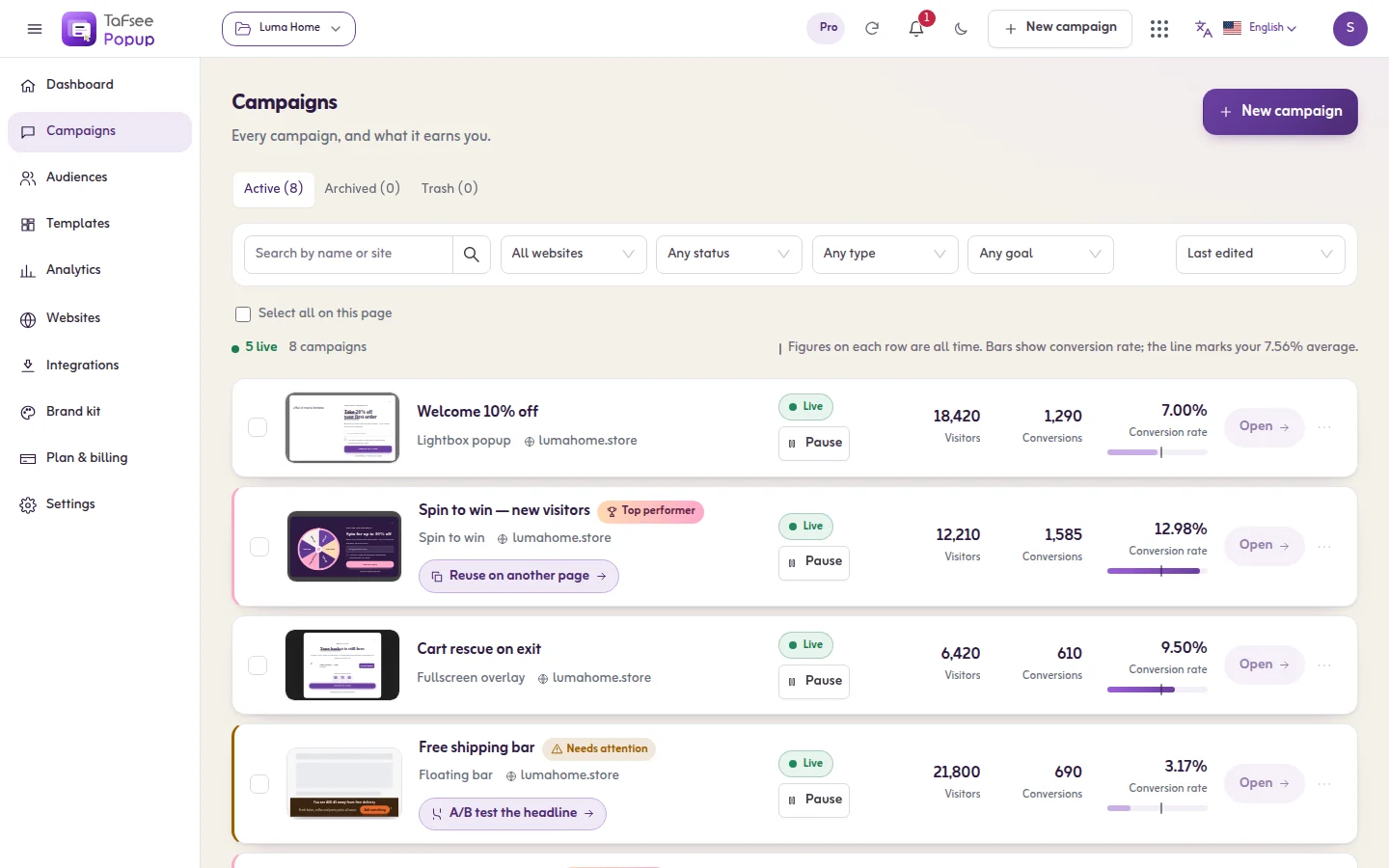
Find a campaign
- Search by name or site.
- Use the views Active, Archived and Trash.
- Filter by Website, Status, Type and Goal. Clear filters removes them.
- Sort by Last edited, Name, Visitors, Conversions or Conversion rate.
What a row tells you
- Status: Draft, Live, Paused, Scheduled or Archived.
- Unpublished changes: Visitors still see the last published version. Open the campaign to publish your edits.
- Top performer marks a campaign that converts well above your average. Needs attention marks one with plenty of visitors that converts well below it.
- A draft shows its steps to go live; click Continue editing.
Act on a campaign
- Start and Pause: Stop showing this campaign to visitors. You can start it again any time.
- Duplicate: The copy starts as a draft, so your live campaign stays untouched.
- Create A/B test: start an A/B test. See A/B versions.
- Archive: hides it and keeps its results.
- Delete moves it to the trash. From the trash you can Restore it (it comes back as a draft) or Delete forever.
- Tick several rows to act on them together.
This can't be undone. Its design, results and A/B test go with it. Leads it captured stay in Leads.
The campaign page
Click a campaign to open its page. It has these tabs:
- Overview: the numbers, where and when it shows, its versions and the latest sign-ups.
- Analytics: the funnel, devices, sources, countries and pages. See Results and analytics.
- Insights: what opened it and when visitors signed up.
- Leads: the people who signed up through it.
- A/B test: versions and the traffic split.
- Details: type, goal, website, where leads go, and the campaign ID.
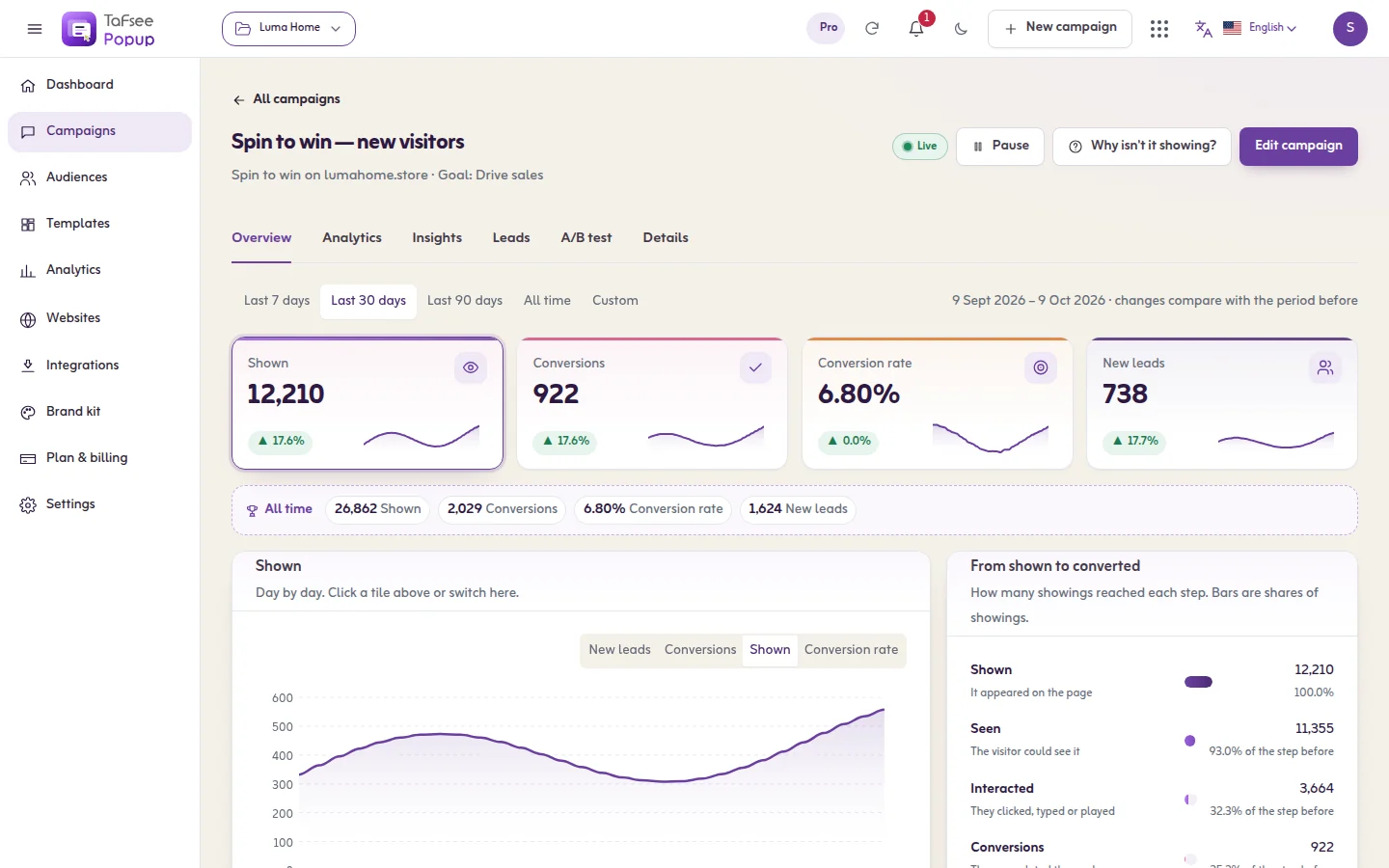
From this page you can also start or pause it, open Schedule, click Edit campaign to open the editor, and click Why isn't it showing?.
If it does not work
- Couldn't change the status. Try again.
- You cannot start a campaign because your plan's live campaigns are all in use: pause another one or see Plan, billing and limits.
- A campaign you expect is missing: check the Archived and Trash views, and the website filter.
Related
Last updated: October 12, 2026
