
Checking the install
Run the install check, send the code to your developer, see your site as a new visitor, and mark where an inline campaign shows.
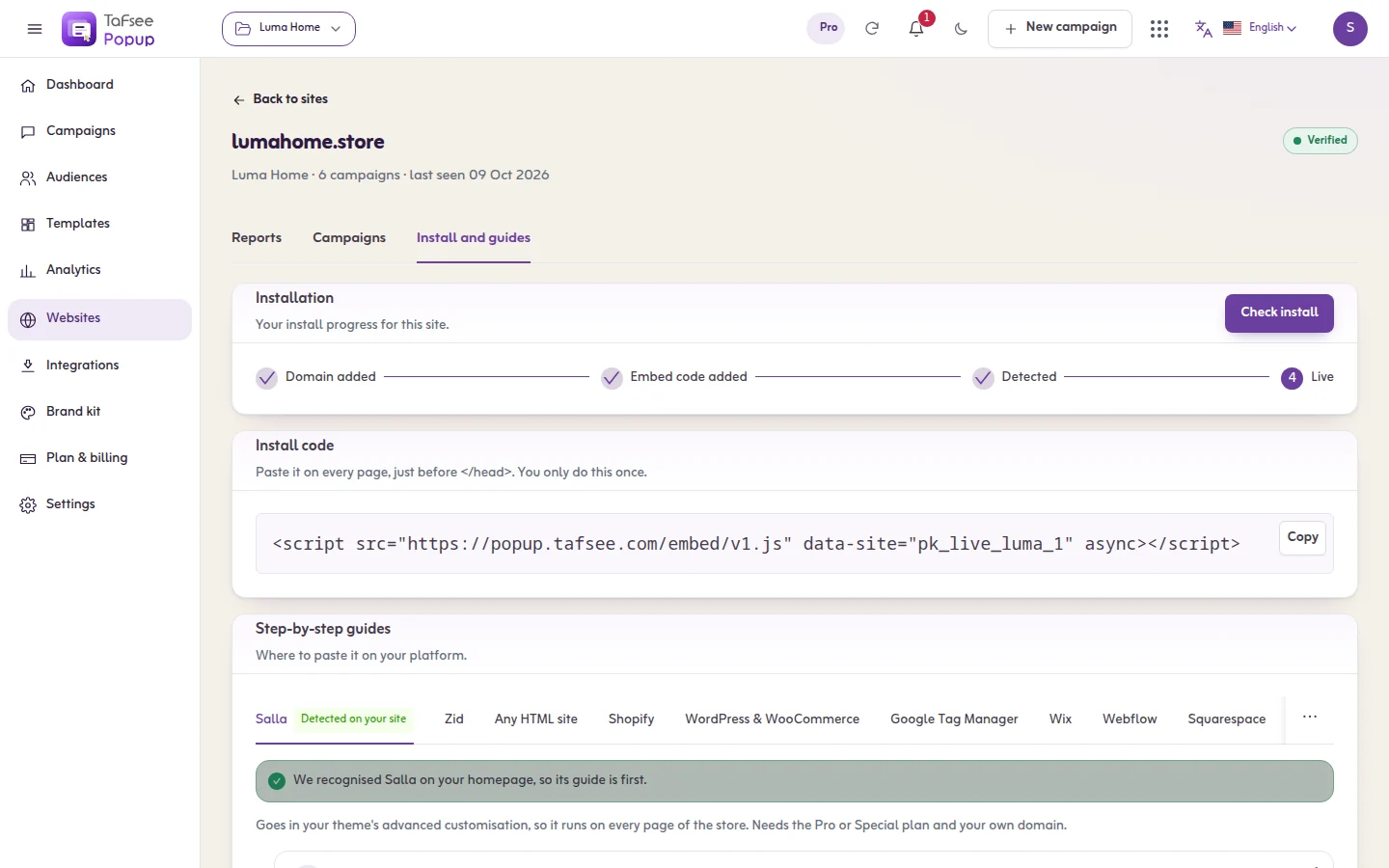
After you paste the install code, the app can confirm it. This article covers the check and the tools around it.
What you need
- The install code pasted on your site. See Installing the code.
Run the check
- Open Websites and click Check my site on the website. In a campaign you can also open Publish and click Check again on the row Tafsee is installed.
- Wait a moment. The app looks for your site key in two ways: the script on your site reports in when a page is opened, and the app also fetches your homepage and looks for the code in it.
What you should see
- Success: Tafsee is installed and working. The website shows Code installed.
- Not found yet: the website stays on Needs the install code.
If the code is added through a tag manager, it is not in the page's own source. Open your website once in a browser, so the script can report in, then run the check again.
Send the code to your developer
- Under the install code, click Send to my developer.
- Click Open in my e-mail to open your own e-mail program with the message written, or Copy as a message to paste it into any chat.
The message holds the code, where to paste it and the link to the guide. Tafsee sends nothing itself.
Check later
In the Publish step you can click I'll check later and go live before the check passes. The row stays open with the tag Check later. The campaign starts showing as soon as the code is on the site.
See it as a new visitor
Once you close a popup or sign up, it stays hidden for you, just as for shoppers. To see it again:
- Open the campaign page or the website page and find See it as a new visitor.
- Click See it as a new visitor. Your site opens in a new tab with this browser's popup history cleared, once. That visit is not counted in your numbers.
The button appears after the website's install check has passed.
Mark where an inline campaign shows
An inline campaign sits inside your page, so it needs a place. In its Publish step, the row Mark where it shows on the page gives one line to paste where it should appear:
<div data-tafsee-inline="YOUR_CAMPAIGN_ID"></div>Without this line the campaign has no place to show.
Need help
Under the code, Need help installing? offers Chat with us on WhatsApp and Contact us.
If it does not work
- See The install check fails for the full list of causes and cures.