

Connecting a tool: how it works
The same four steps for every tool: connect it, choose the campaigns that send to it, choose what is sent, and send a test lead.
Every lead is saved in Tafsee first. A connected tool then receives a copy. If a tool fails, the lead is still safe and can be sent again.
What you need
- A role that can manage integrations.
- An account with the tool, and its key, token or webhook link. Each tool's article says where to find it.
1. Connect the tool
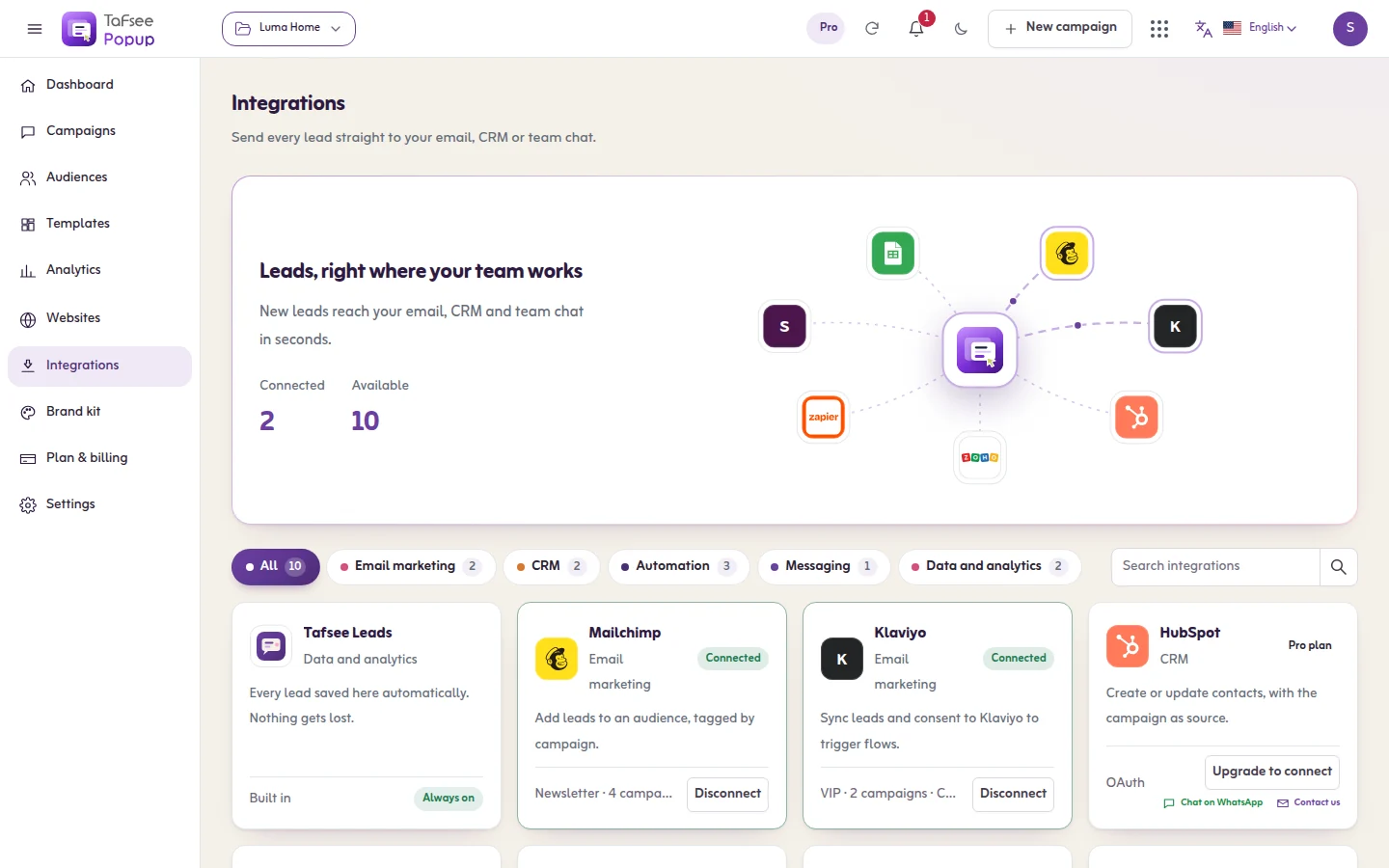
- Open Integrations. Find the tool with the search box, or by category: Email marketing, CRM, Automation, Messaging or Data and analytics.
- Click Connect on its card and fill in the form.
- Click Connect again. Credentials are encrypted and only used to deliver your leads.
2. Choose the campaigns
A connected tool receives nothing until a campaign sends to it.
- Right after connecting, a window lists your campaigns. Tick the ones that should send their leads to this tool.
- Click Save campaigns.
- To change it later, click the campaigns button on the tool's card.
New campaigns are not added by themselves. Come back here, or add this integration in the campaign's Publish step.
Or start from a campaign
- Open the campaign's Publish step.
- On the row Leads go to your email tool, click Connect or Manage.
- Click Add integration, choose the tool, then choose what to send, and click Save.
The panel Where leads go then lists every tool this campaign sends to. Tafsee Leads is always in the list and cannot be removed.
3. Choose what is sent
- Webhook, Zapier, Make, n8n, Pabbly Connect, HubSpot and Zoho CRM use the campaign's table What to send: one row per value, from a form answer or a detail about the sign-up to a field in the tool. You can add fixed values too.
- The other tools take a fixed set of details. Their articles list it.
4. Test
- For a tool connected with a link (and for Telegram), the card has Send test lead.
- For any tool, the campaign's Publish step has Send test lead. It sends a clearly marked test lead through the same path as a real sign-up and shows what each tool answered.
Reading a card
- Connected: the tool is connected.
- Needs attention: the last lead could not be delivered because of the connection. Click Fix connection and enter the details again.
- Disconnect removes the connection. Leads already sent stay in the tool.
- Upgrade to connect: the tool needs a plan that includes it.
Tools you can connect
- E-mail: Mailchimp, Klaviyo, Brevo, MailerLite, ActiveCampaign, Kit (ConvertKit)
- CRM: HubSpot, Zoho CRM, Pipedrive
- Automation: Zapier, Make, n8n, Pabbly Connect, Webhook
- Team chat: Slack, Discord, Microsoft Teams, Google Chat, Telegram
- Data: Google Sheets
A tool that is not in the list can be reached through Zapier, Make, n8n, Pabbly Connect or a webhook.
If it does not work
- Couldn't connect. Check the details and try again. The app shows the tool's reason under the form when it has one.
- No campaign sends leads here yet, so nothing will arrive.
- Leads show Failed: see Lead delivery and Send again.
- Leads show Not sent to a tool: the campaign they came from is not ticked for the tool.
Related
Last updated: October 12, 2026
