
Brand kit
Set the colours, logo and fonts that new campaigns start in, by scanning your website or filling them in by hand.
The brand kit holds the colours, logo and fonts your campaigns start in. Templates take them when you create a campaign, so you do not restyle each one.
What you need
- A role that can manage settings.
- Your website address, or your brand colour as a hex code and your logo as a link or a file.
Read the brand from your website
- Open Brand kit in the left menu.
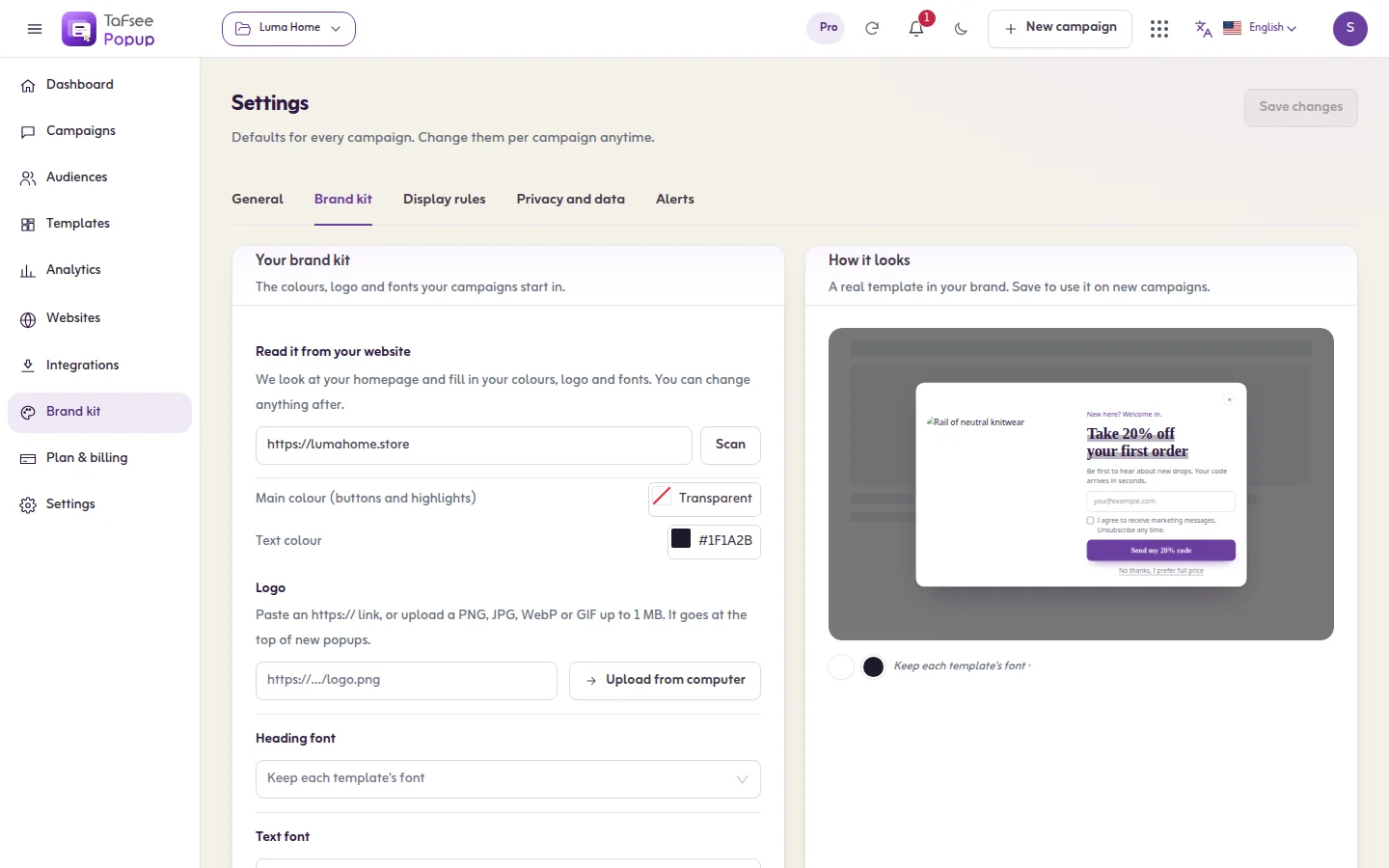
- Under Read it from your website, type your website address and click Scan.
- Popup looks at your homepage and fills in colours, logo and fonts. The message Brand read from your website. Check it and save. appears.
- Change anything that is not right, then save.
Fill it in by hand
- Main colour (buttons and highlights): used for buttons and highlights.
- Text colour: the colour of text.
- Logo: Paste an https:// link, or upload a PNG, JPG, WebP or GIF up to 1 MB. It goes at the top of new popups.
- Heading font and Text font. Choose Keep each template's font to leave fonts as each template has them.
Use it on new campaigns
Switch on Use my brand on new campaigns. Templates take your colours, logo and fonts when you create a campaign from them. The preview under How it looks shows a real template in your brand.
The brand kit applies when a campaign is created. Campaigns you already made keep their design. To restyle one of them, use the palettes or Change look in the editor.
If it does not work
- Couldn't read that website. Check the address, or fill the kit in by hand.
- The scan found the wrong colour: sites with many colours can confuse it. Type the hex code yourself.
- The logo will not upload: use a PNG, JPG, WebP or GIF up to 1 MB.
Related
Last updated: October 12, 2026