

Show when: the three questions
The Where & when step asks three plain questions: when it should appear, who should see it, and how often. This is how each answer works.
The Where & when step of the editor decides when a campaign shows. Most campaigns need only its three questions. The full rule editor is underneath for everything else.
What you need
- A campaign open in the editor.
Quick start
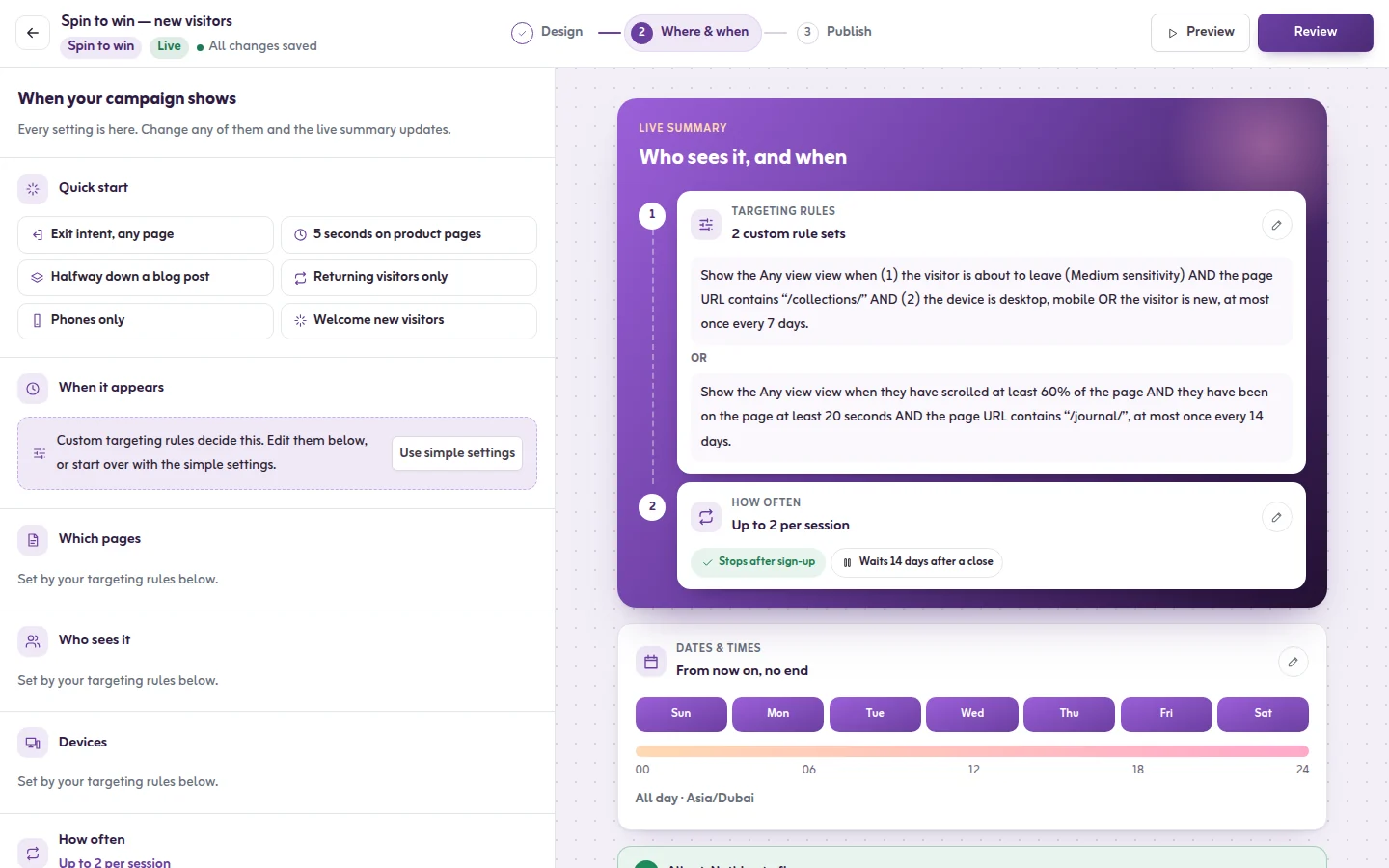
Under Quick start there are six ready answers. One click sets all three questions: Exit intent, any page, 5 seconds on product pages, Halfway down a blog post, Returning visitors only, Phones only and Welcome new visitors. A recipe replaces your current rules; Undo brings them back.
1. When should it appear?
- Open the card When should it appear?.
- Pick the moment: After a few seconds (recommended), After they scroll, When they're about to leave or As soon as the page opens.
- Fill the blank in the sentence, for example the number of seconds or how far down the page in percent.
- Under On which devices? choose All devices, Computers only or Phones only.
- Optional: click Add another trigger. The triggers are joined with "or": It opens on whichever happens first.
- Click Done.
Recommended: after 5 seconds. By then a visitor has had a look around.
2. Who should see it?
- Open the card Who should see it?.
- Under Which pages choose Every page, Home page only or Only some pages. For some pages, type part of the page address, such as /products. See Page rules with worked examples.
- Under Who sees it choose Everyone, New visitors or Returning visitors.
Recommended: everyone, on every page. Narrow it down only when the offer is for some pages or some visitors.
3. How often should one visitor see it?
- Open the card How often should one visitor see it?
- Choose Once per visit, Once a day, Once a week, Only once, ever or Every page view.
- Keep Stop once they sign up switched on, so people who signed up are not asked again.
- Set After they close it, wait to the number of days of rest after a close.
Recommended: once a week, and never again after they sign up. See Frequency: how often a visitor sees it.
The live summary
On the right, Who sees it, and when reads your answers back as one sentence and lists things to check, for example a campaign that would show on every page view.
Dates and the full rule editor
- Dates & times: a start date, an end date, days of the week and hours. See Schedule: dates, days and hours.
- Targeting rules: every condition Tafsee Popup has, in groups you can combine. Click Edit rules. See the Display rules section, starting with When it appears: every trigger.
When a campaign uses rules that the three questions cannot express, the cards say Custom targeting rules decide this. Edit them below, or start over with the simple settings. Click Use simple settings to start over with the simple settings.
What you should see
The step saves by itself and the summary updates as you change answers. On a live campaign, publish your changes to send them to the site.
If it does not work
- No rules are switched on, so this campaign never shows. Pick a recipe.
- The end date has passed, so this campaign won't show. Click Remove end date.
- The start date is after the end date, so this campaign never runs.
- It shows too often or never again: see The popup shows too often, or does not show again.
