
Publishing, pausing and scheduling
Go live from the Publish step, read its checks, publish later edits, pause, schedule dates and hours, and share a campaign by link.
A campaign is a draft until you publish it. Publishing needs no change to your website's code.
What you need
- A campaign with some content. An empty popup cannot be published.
- A role that can publish campaigns.
Go live
- Open the campaign in the editor and go to Publish.
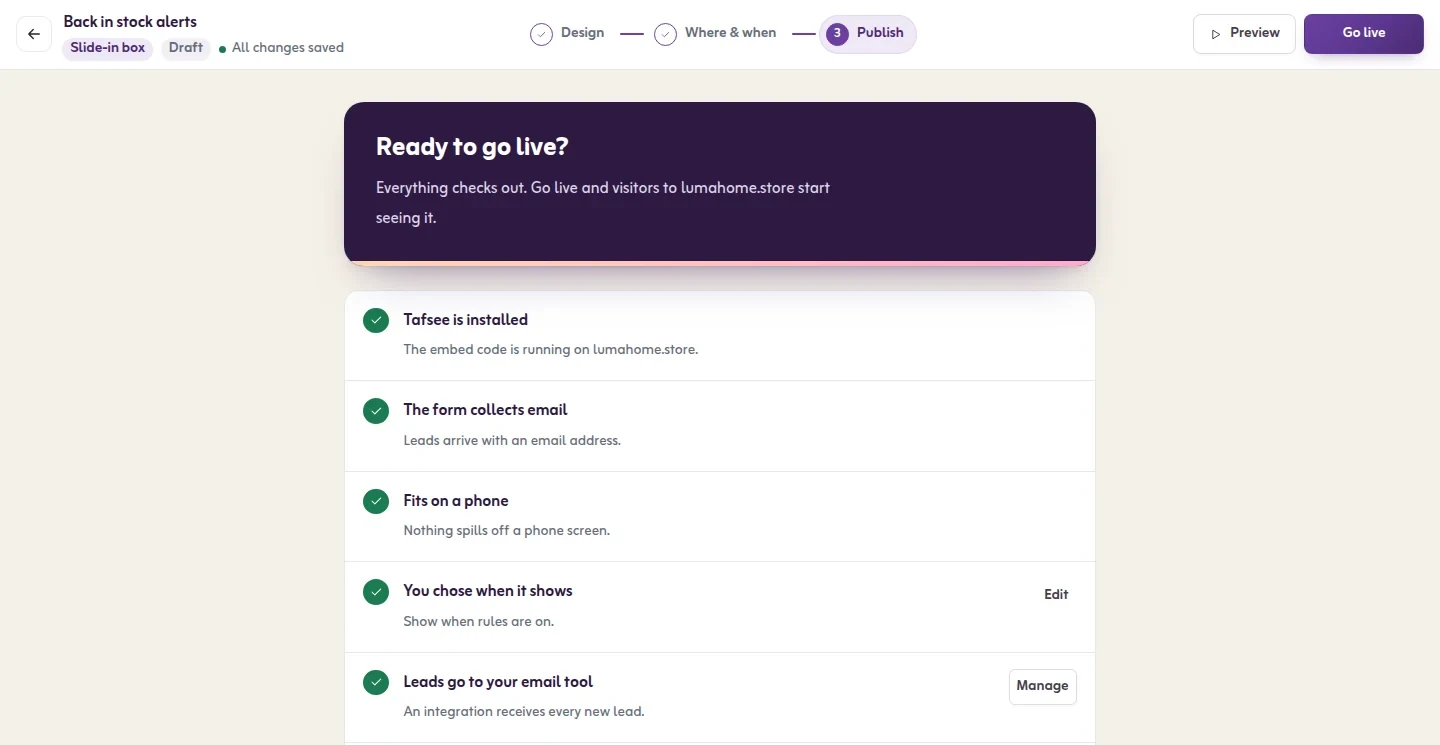
- Read the checks under Ready to go live?:
- Tafsee is installed: the install code is running on the website. If not, click Get the code, or I'll check later.
- The form collects email: without an e-mail field, leads cannot be contacted. Click Add email field to add one.
- Fits on a phone: nothing spills off a phone screen. If it does, click Check on phone.
- You chose when it shows: at least one rule is on. If none is on, the campaign never shows.
- Leads go to your email tool (Optional): leads are always saved in Tafsee; a connected tool also receives them.
- Share link (Optional): see below.
- Click Go live in the top bar. You can go live while a check still needs a look; the app tells you which one.
What you should see
The campaign page opens with the message Your popup is live. The status becomes Live. Visitors see changes within a minute.
Things that block publishing
Under Fix this before publishing the app lists what must be fixed first:
- The popup has no content yet. Add a heading, text or a form.
- The popup collects sign-ups but its form has no field to fill in. Add an email or phone field.
Edit a live campaign
Edits to a live campaign are kept as a draft. Visitors keep seeing the last published version, and the campaign shows the badge Unpublished changes.
- Make your changes. They save by themselves.
- Click Publish changes in the top bar to send them to your site.
- To go back to what visitors see now, click Discard changes in the Publish step. This cannot be undone.
Pause and start again
Click Pause in the Publish step, or Pause in the campaigns list. A paused campaign is hidden from visitors and keeps its results. Click Start to show it again.
Schedule dates and hours
- On the campaign page click Schedule, or open Where & when and find Dates & times.
- Set Starts and Ends. Leave them empty to run until you stop it.
- Optional: choose Days of the week and Hours of the day, and the Timezone they follow.
A campaign published with a start date in the future has the status Scheduled and starts by itself. See Schedule: dates, days and hours.
Share link
The row Share link gives a link to the campaign on a Tafsee page. Anyone with this link sees the campaign on a Tafsee page, on any device. It works while the campaign is live. Use it for social posts, QR codes and print.
Open a campaign from a link or button on your site
Add this link anywhere on a page that has the install code. A click opens the campaign, whatever its rules say:
<a href="#tafsee-show-YOUR_CAMPAIGN_ID">Get the offer</a>The campaign ID is on the campaign's Details tab.
Your plan's live campaigns
When all the live campaigns of your plan are in use, the app says so and asks you to pause one or upgrade. Campaigns already live keep running. See Plan, billing and limits.
If it does not work
- It is live but you do not see it: click Why isn't it showing? on the campaign page. See Why isn't my popup showing?.
- Your edits do not appear on the site: check for the badge Unpublished changes and click Publish changes.
- The website was removed, so this campaign was paused. Move it to another website to put it live again; its stats come with it.