
Move goods and count stock
Move a lot to another rack by scanning the rack code, and count what is on a rack or in the whole warehouse.
Goods move inside the warehouse, and the system should know. Moving a lot and counting a rack both work by scanning.
Move a lot
- Open the lot.
- Press Move.
- Press Scan a rack code and scan the rack label, or press Pick a rack and choose it from the list.
- Confirm. The lot's Where it is changes and the move is recorded in its timeline.
If you type a code that does not exist you see that no rack has that code.
Count stock
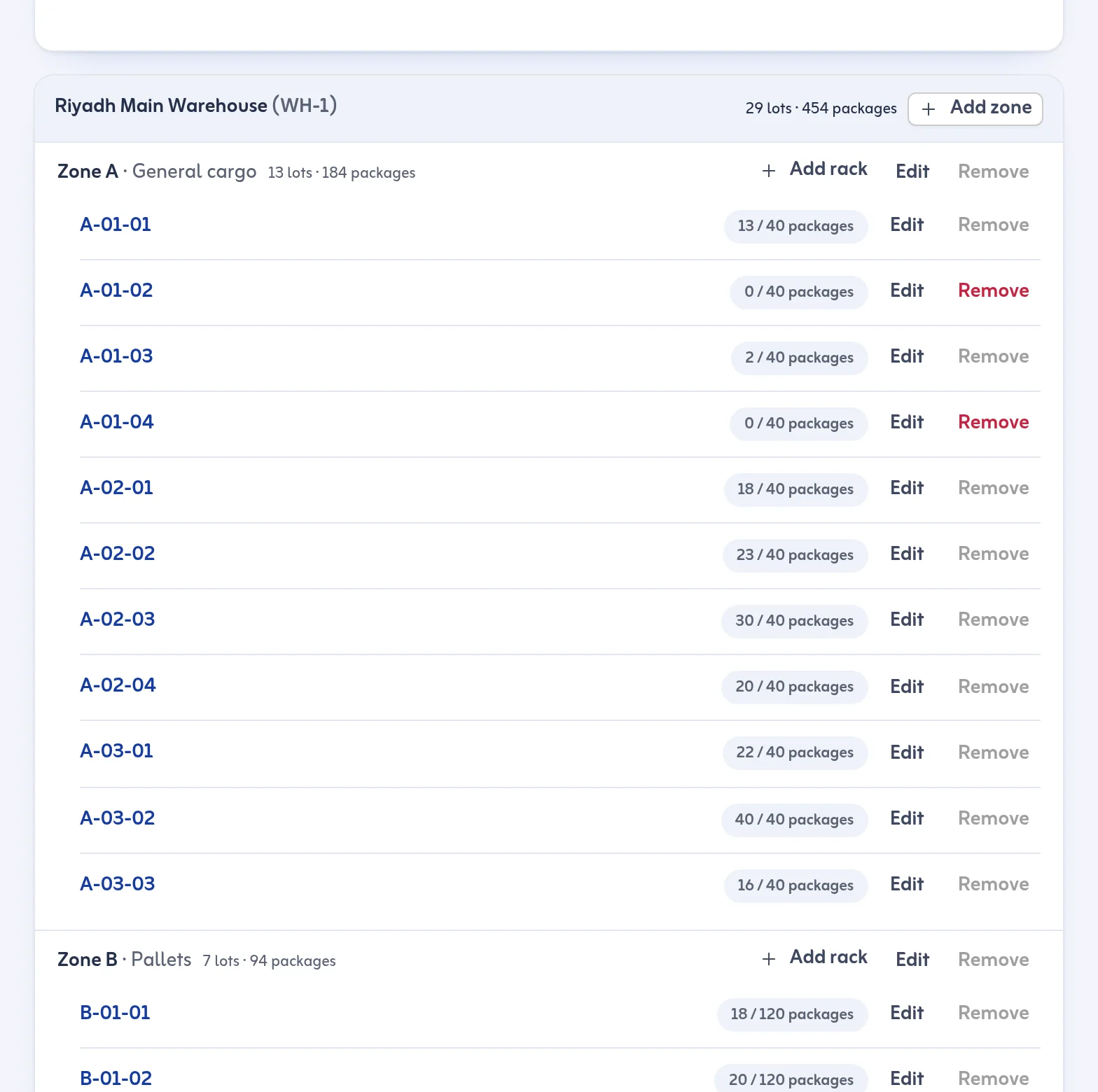
- Open Zones & Racks and choose a rack, a zone or Whole warehouse.
- Press Start count.
- Scan each package in that place. The screen shows how many you have scanned, for example 8 of 10.
- Look at Missing (expected but not scanned) and Unexpected (scanned but not expected there).
- Add a Note (optional) and press Save count. Missing packages are noted on their lots.
Earlier counts stay under Earlier counts.
Rules and tips
- Only goods physically in the warehouse are counted.
- Packages that left during the count (put on a trip, delivered or moved) show as Left during the count, not as missing.
- Each lot shows its age in storage in days. You can filter stock older than a number of days.
- Going over a rack's capacity warns you but never blocks a move.
Count a busy rack late in the day, when fewer boxes are moving.
Next: plan a delivery trip. More in the Warehouse inventory feature and Zones and racks.
Last updated: October 24, 2026