Settings
Set the lot prefix, labels, approvals, holds, alerts, delivery proof, failure reasons and customer emails.
Settings is where you shape the app to your business. Open Settings in the sidebar; it has eight tabs. Only owners and admins change most of them.
The tabs
- General: Business phone, Reply-to email, Language of customer emails, Team notification email and which customer emails are sent.
- Warehouses: your warehouses, with their address and map pin.
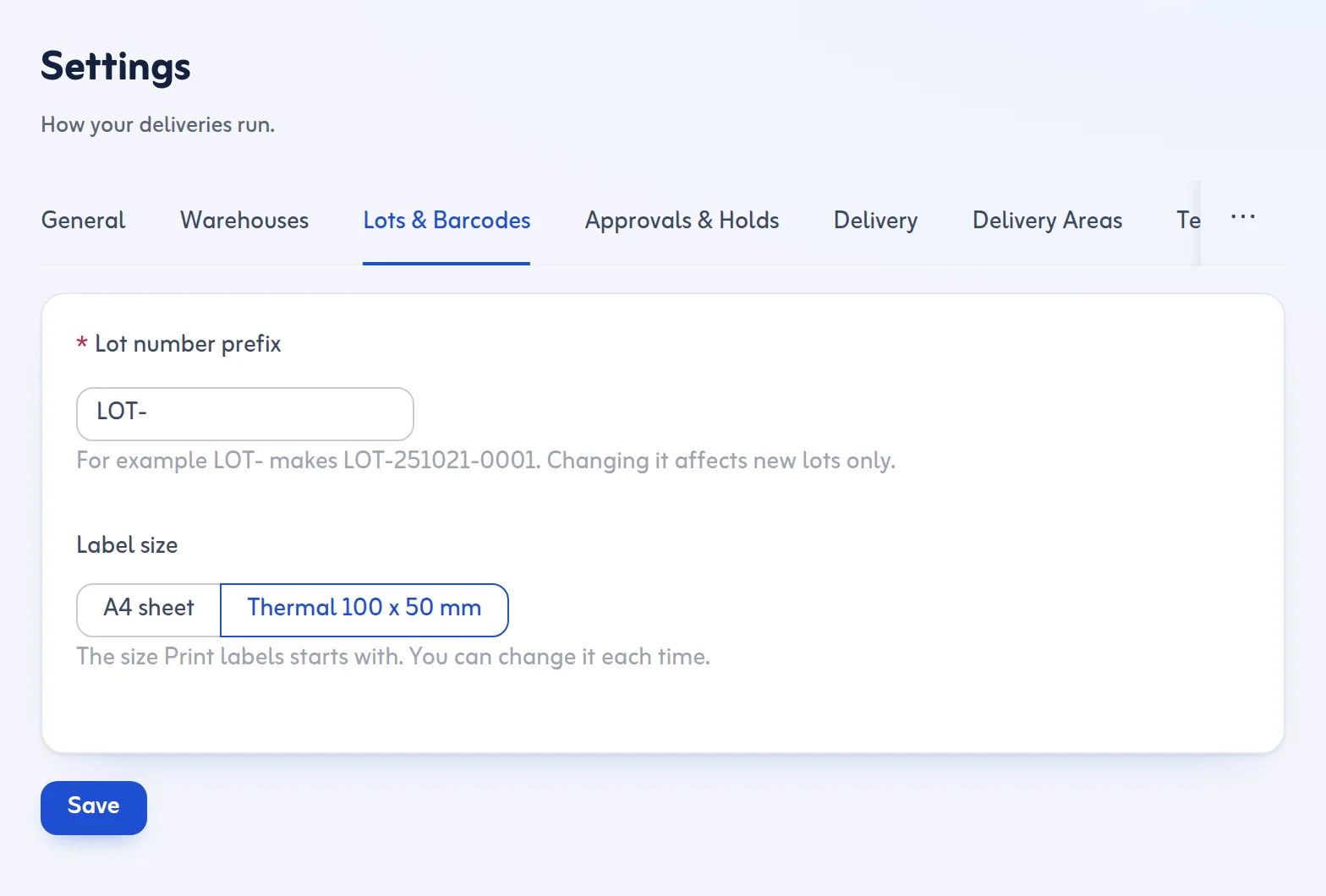
- Lots & Barcodes: Lot number prefix (for example LOT- gives LOT-251021-0001; a change affects new lots only) and Label size.
- Approvals & Holds: New lots need approval, Automatic holds for each arrival method, Alert when a hold is older than (days) and Alert when approved lots wait (days).
- Delivery: proof of delivery, Failure reasons, Delivery attempts before return, delivery services and the tracking page options.
- Delivery Areas: the areas you deliver to.
- Team & Roles: see Invite your team.
- Plan & Billing: see Plan and billing.
Common changes
- To require approval before dispatch, open Approvals & Holds and switch on New lots need approval.
- To put sea and air arrivals on customs hold automatically, choose the hold type for those methods under Automatic holds.
- To choose how deliveries are proved, open Delivery and allow Customer's 4-digit code, Signature, or both. Switch on Photo required if every delivery needs a photo.
- To limit retries, set Delivery attempts before return (1 to 9).
- Press save. You see a message when the settings are saved.
Tips
- Untick a failure reason that drivers should not use, or add Your own reasons.
- The alert days feed the Needs attention card on the Dashboard.
- The tracking page can show the driver's first name and vehicle type; switch it off if you prefer not to show it.
The country (Saudi Arabia), currency (SAR) and time zone (Asia/Riyadh) are fixed.
Related: Delivery services and charges and Holds and approvals.
Last updated: October 24, 2026