Plan a delivery trip
Pick the lots that are ready, choose a driver and vehicle, check capacity and put the stops in a good order.
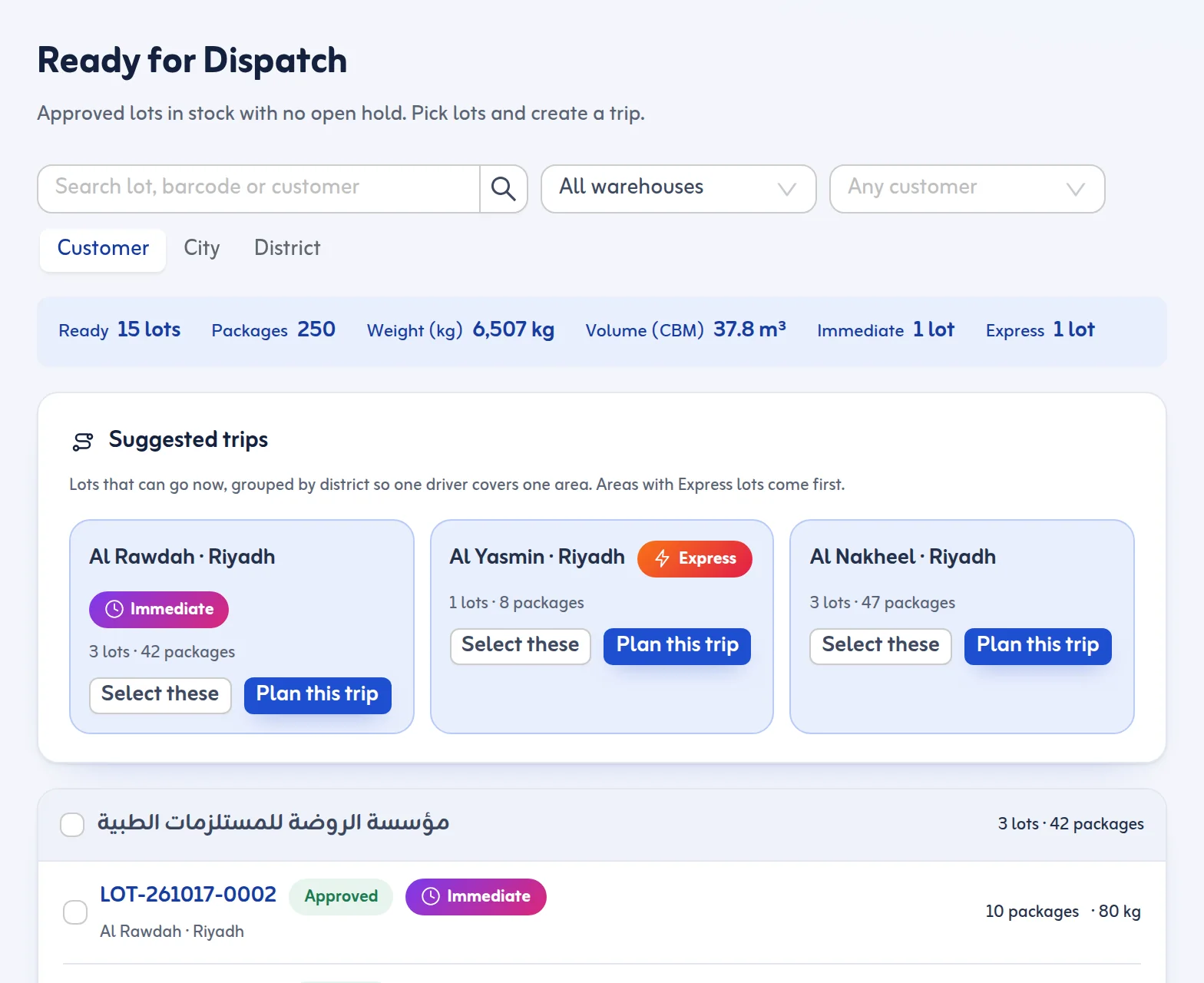
A trip is a date, a driver, a vehicle and a list of stops. You start from Ready for Dispatch, which only shows lots that are approved, in stock and free of open holds.
Steps
- Open Ready for Dispatch. Group the list by Customer, City or District.
- Under Suggested trips, press Select these for a group, or Plan this trip. Lots are grouped by district so one driver covers one area; areas with Express lots come first. You can also tick lots yourself.
- Press Create trip (or Add to trip to put the lots on a trip that is already planned).
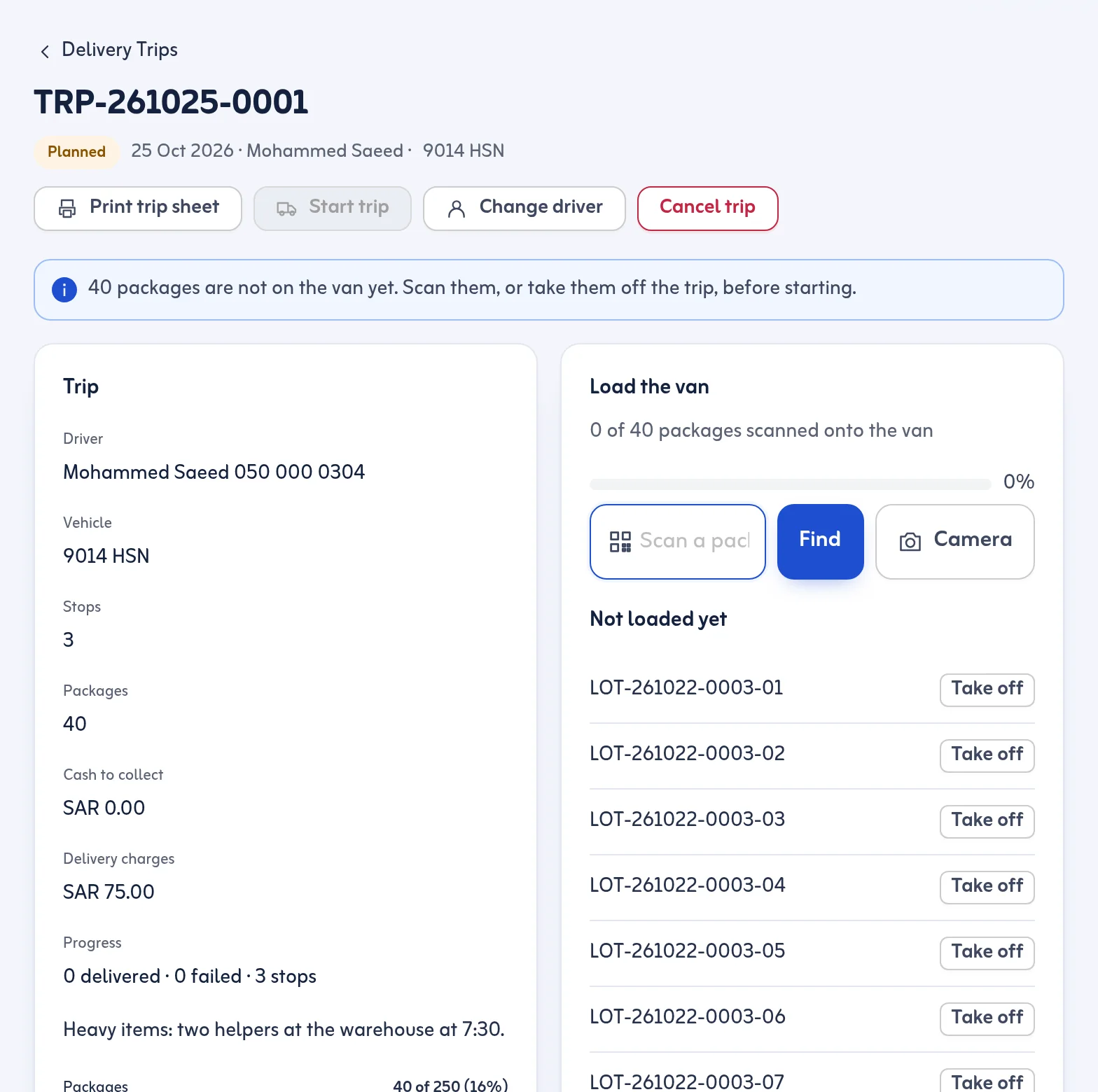
- Choose the Date, the Driver and the Vehicle. The Checks box tells you about capacity, shifts and documents.
- Add Notes for the driver if needed, then press Create trip.
- On the trip, change the order of stops with Move up and Move down, or press Optimise order.
Rules the app enforces
- Capacity is checked against the vehicle's packages, kg and m³. Above 90% you get a warning. Above 100% the trip is blocked unless you give a reason.
- A driver or vehicle cannot be on two trips that are out at the same time.
- An expired driving licence blocks the trip. A driver with shifts must be on shift that day.
- Optimise order puts the stops in the shortest order from the warehouse and shows about how many kilometres you save. Express and urgent stops go first. Stops without a map pin are not counted.
- One stop is made for each customer delivery address.
Missing an address or phone? Ready for Dispatch shows Add an address or Add a phone next to the lot.
Next: load the van and start. More in the Ready for dispatch feature and Delivery trips.
Last updated: October 24, 2026