
Proof of delivery
Finish a delivery with the customer's code, a signature or a photo, including partial deliveries.
Every delivery ends with proof, so the office and the customer can both be sure the goods were handed over. What counts as proof is set by the office in Settings.
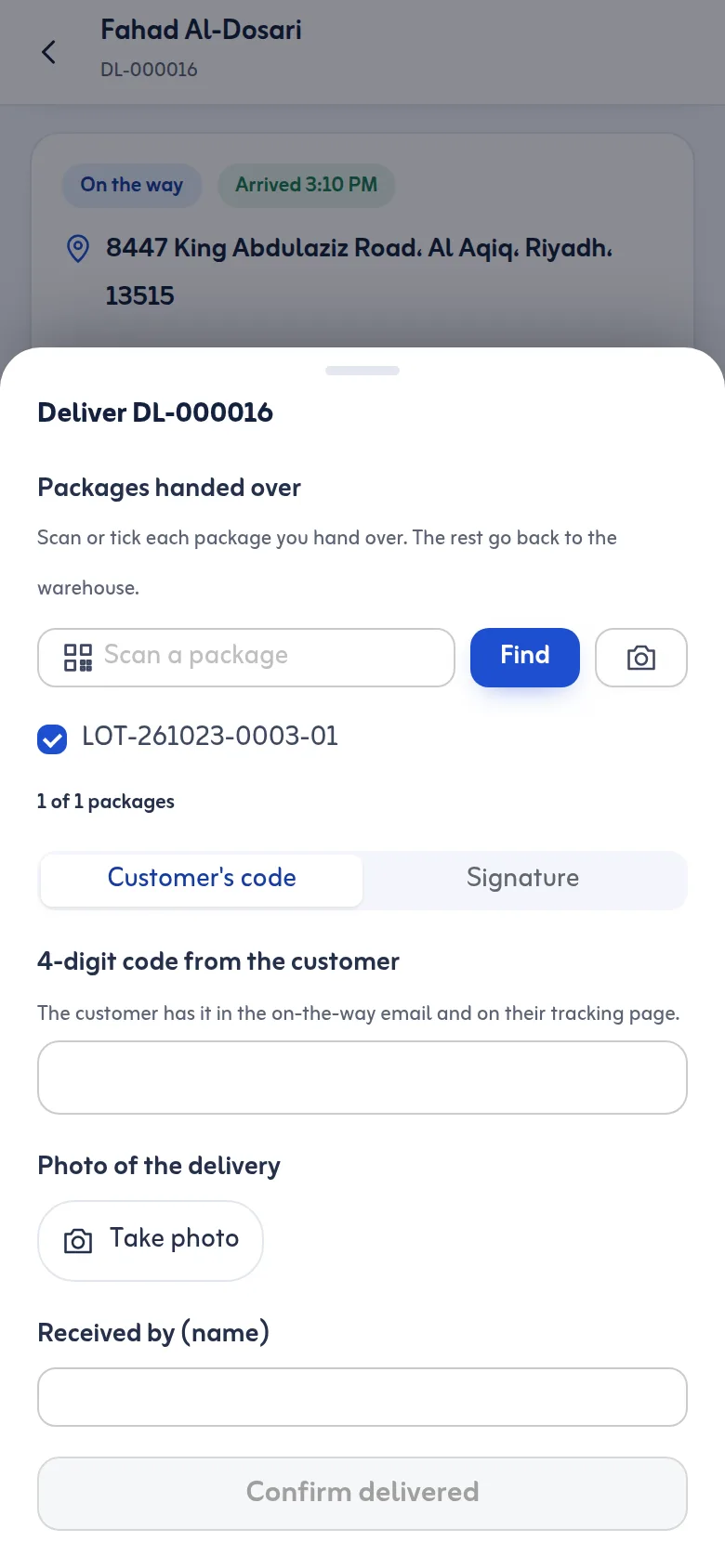
Deliver with a code
- At the stop, check Packages handed over: scan or tick each package you hand over.
- Choose Customer's code.
- Ask the customer for the 4-digit code from the customer. They have it in the on-the-way email and on their tracking page.
- Type it and write Received by (name).
- If cash is due, enter Cash collected.
- Press Confirm delivered.
Deliver with a signature
- Choose Signature.
- Ask the customer to sign on your screen (Ask the customer to sign here). Press Clear to start again.
- Write the receiver's name and press Confirm delivered.
Photo
A photo from the phone camera is optional or required, depending on Settings. Press Take photo, or Take again if it is not clear.
Rules
- Five wrong codes lock the code and the app asks for a signature instead.
- If the customer did not get the code, press Email the code to the customer again. You can do this up to 3 times, 60 seconds apart.
- Only part handed over? Select just those packages in Packages handed over. The rest go back to the warehouse and the stop shows as partly delivered.
- The place where you finish the stop is compared with the customer's pin. More than 300 m away is flagged for the office.
- A different cash amount needs a note.
You never see the customer's code yourself. The office can read it from the lot page if the customer calls.
More: Track deliveries and the Proof of delivery feature.
Last updated: October 24, 2026