
Split and merge lots
Split a lot when part of it goes out first, or merge lots of the same customer into one.
Goods often leave in parts: a customer wants five boxes now and the rest next week. Splitting and merging keep each lot matching what really sits on your racks.
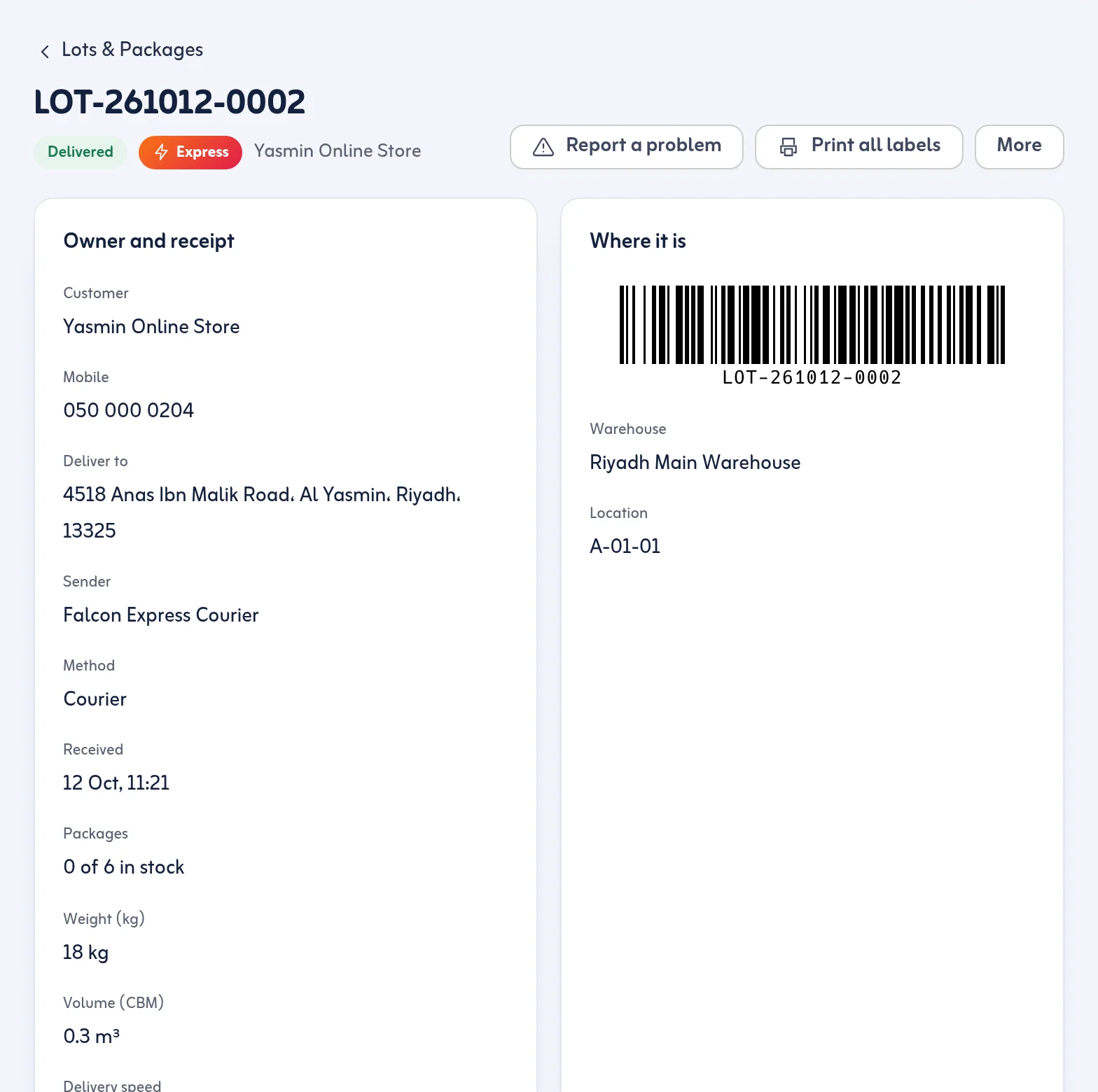
Split a lot
- Open the lot (scan it, or find it in Lots & Packages).
- Press Split lot.
- Tick the packages that should move into a new lot. The screen counts them, for example 2 of 10 packages picked.
- Confirm. A new lot is made for the same customer.
The packages keep their printed barcodes, so you do not reprint anything.
Merge lots
- Open the lot you want to keep.
- Press Merge lots.
- Choose the other lot or lots of the same customer in the same warehouse.
- Confirm. The other lot is merged into this one and shows a note that it was merged.
If the customer has no other lot that can be merged, the screen says so.
Rules and tips
- Merging works only for lots of the same customer in the same warehouse.
- Everything is recorded in the lot's timeline with who and when.
- Split before you plan a trip if only part of a lot should go out; see Plan a delivery trip.
Splitting does not change the lot's holds or approval status. Check them on the new lot before dispatch.
Next: holds and approvals. More in the Lots and packages feature.
Last updated: October 24, 2026