

An exit popup opens when a visitor shows signs of leaving the page, instead of after a fixed number of seconds. On a computer the sign is clear: the pointer heads for the tabs or the close button. A mobile popup has no pointer to watch, so exit intent on a phone relies on weaker signals and needs a little more care. This guide explains both, then gives 12 offers worth trying.
How an exit popup knows the visitor is leaving
No script can read a shopper's mind. An exit-intent popup watches for a movement that usually comes just before someone leaves, and opens the campaign at that moment. That is why it suits a last offer: it only interrupts people who were going anyway, and it leaves everyone who is still reading alone.
On a computer
The signal is the pointer leaving the page at the top of the window, on its way to the tabs, the address bar or the close button. In Tafsee Popup you choose how early it fires under How easily it fires:
- Low: only when the pointer leaves at the very top of the window. Fewest showings.
- Medium: when the pointer leaves near the top of the window.
- High: fires earliest, in a wider strip below the top of the window. Most showings, and more false alarms from people who were only reaching for the menu.
On a phone
A phone has no pointer. With Also watch on phones switched on, the campaign opens when a visitor who has read down the page flicks quickly back up, which is what people do to reach the address bar. At the High setting it also opens when they switch away from the page. With the switch off, the trigger fires on computers and tablets with a pointer only.
Be honest with yourself about what this means. A mobile exit intent popup catches some leaving visitors, not all of them. Someone who taps the back button or closes the browser gives no warning at all, and no tool can show a popup after the page has gone.
Making a mobile exit intent popup work
Because the phone signal is weaker, do not rely on it alone for your mobile traffic.
- Add a second trigger. Click Add another trigger and pick After they scroll or After a few seconds. The campaign opens on whichever happens first, and still only once on that page.
- Keep it mobile friendly. One short headline, one field, one button big enough for a thumb. Check the phone preview in the editor; the Publish step warns you if the design spills off a phone screen. See phone settings.
- Consider a smaller format. On a phone, a floating bar or a slide-in at the bottom of the screen often does the same job without covering the product.
Where exit intent earns its place
- Cart and checkout pages: the visitor wanted the product and something stopped them. Answer the likely objection: delivery cost, payment options, returns. More on this in our guide to reducing cart abandonment.
- Product pages: a first-order code, a size guide or a way to ask a question.
- Blog and guide pages: a checklist or a related guide in exchange for an email address.
Skip it on pages where the visitor has just finished what they came for, such as the order confirmation page, and never show it to people who have already signed up.
12 exit-intent popup examples to try
- A first-order discount code for new visitors only.
- Free delivery above an order value you already offer, stated plainly.
- A spin-to-win wheel with small prizes that can all really be won.
- Early access to your next sale in exchange for an email address.
- A reminder that you accept cash on delivery or instalments, if you do.
- Your return policy in one sentence, on the cart page.
- A button that opens a WhatsApp chat for questions before buying.
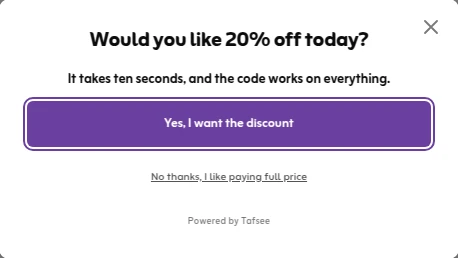
- A yes / no question first ('Would you like 20% off today?'), then the email field only for those who say yes.
- A short quiz that points to the right product.
- A Ramadan or Eid gift guide during the season.
- A one-question survey: what stopped you today? The answers are worth more than a week of guessing.
- A downloadable checklist or price list for service and B2B visitors.
One caution on discounts. If every leaving visitor gets a code, regular customers learn to head for the close button before they pay. Limit discount offers to new visitors, and use non-discount offers (delivery, returns, help) for the rest.
How to set up an exit popup in Tafsee Popup
- Create a campaign from a template or a blank canvas and design the offer.
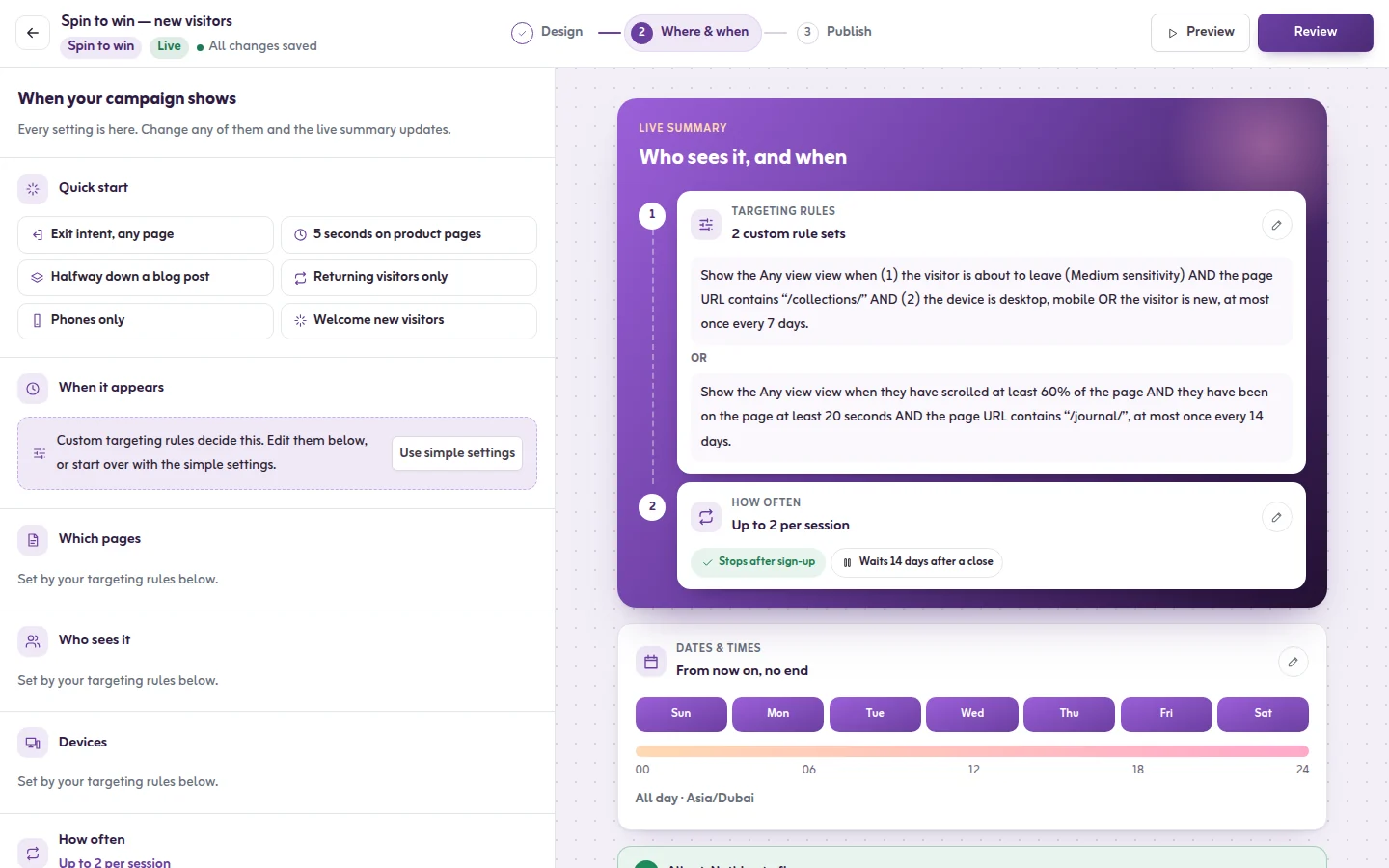
- Go to Where & when and open the card When should it appear?. The fastest way is the recipe Exit intent, any page under Quick start.
- Choose When they're about to leave, then set How easily it fires. Medium is a sensible start.
- Decide on Also watch on phones, and add a second trigger for phone visitors if you want one.
- Limit it to the pages that matter, such as the cart, with a page rule.
- Set the frequency to Once a week with Stop once they sign up switched on, then publish.
To test it, open your site with ?tafsee-debug=1 at the end of the address. The inspector panel has a Simulate exit intent button, so you do not have to chase your own pointer. The full steps are in the exit-intent guide.
Limits worth knowing
- Exit intent and inactivity cannot be combined in one rule; the rule editor asks you to keep one.
- A trigger fires once per page view. If the visitor closes the popup, it does not come back on that page.
- Exit intent is one of the 39 display rules and is available on every plan, including the Free plan. See pricing.
- How well it works on your store is something to measure, not assume. The campaign's Insights tab shows what opened the campaign and how often each trigger led to a sign-up.
If you are still deciding between triggers, read when a popup should appear, or go straight to the exit-intent popup page.
Frequently asked questions
Partly. A phone has no pointer, so Tafsee Popup opens the campaign when a visitor who has read down the page flicks quickly back up, and at the High setting when they switch away from the page. A visitor who taps back or closes the browser gives no signal, so add a second trigger such as scroll for phone traffic.
A short headline, one field, a large button and a close control that is easy to tap. Show it once a week at most, stop after a sign-up, and use a bar or a bottom slide-in when the message does not need the whole screen.
Less than a popup that opens while someone is reading, because it only appears to visitors who were leaving. It becomes annoying when it returns on every page or after a sign-up, so set a weekly limit and stop it once the visitor signs up.
Add ?tafsee-debug=1 to the end of any page address on your site. The Tafsee inspector panel opens for you only, with a button that simulates exit intent and another that resets you as a new visitor.
