
A sales invoice is the document you issue to bill a customer: it captures commercial terms, line items, VAT treatment, totals, and a PDF aligned with Saudi e-invoicing expectations once your organisation is configured for submission.
Many invoices start from an accepted quote, but you can create them directly. Draft invoices let finance review wording and dates before you issue; after posting, receipts and ageing tie back to the same invoice for consistent books.
Create an invoice
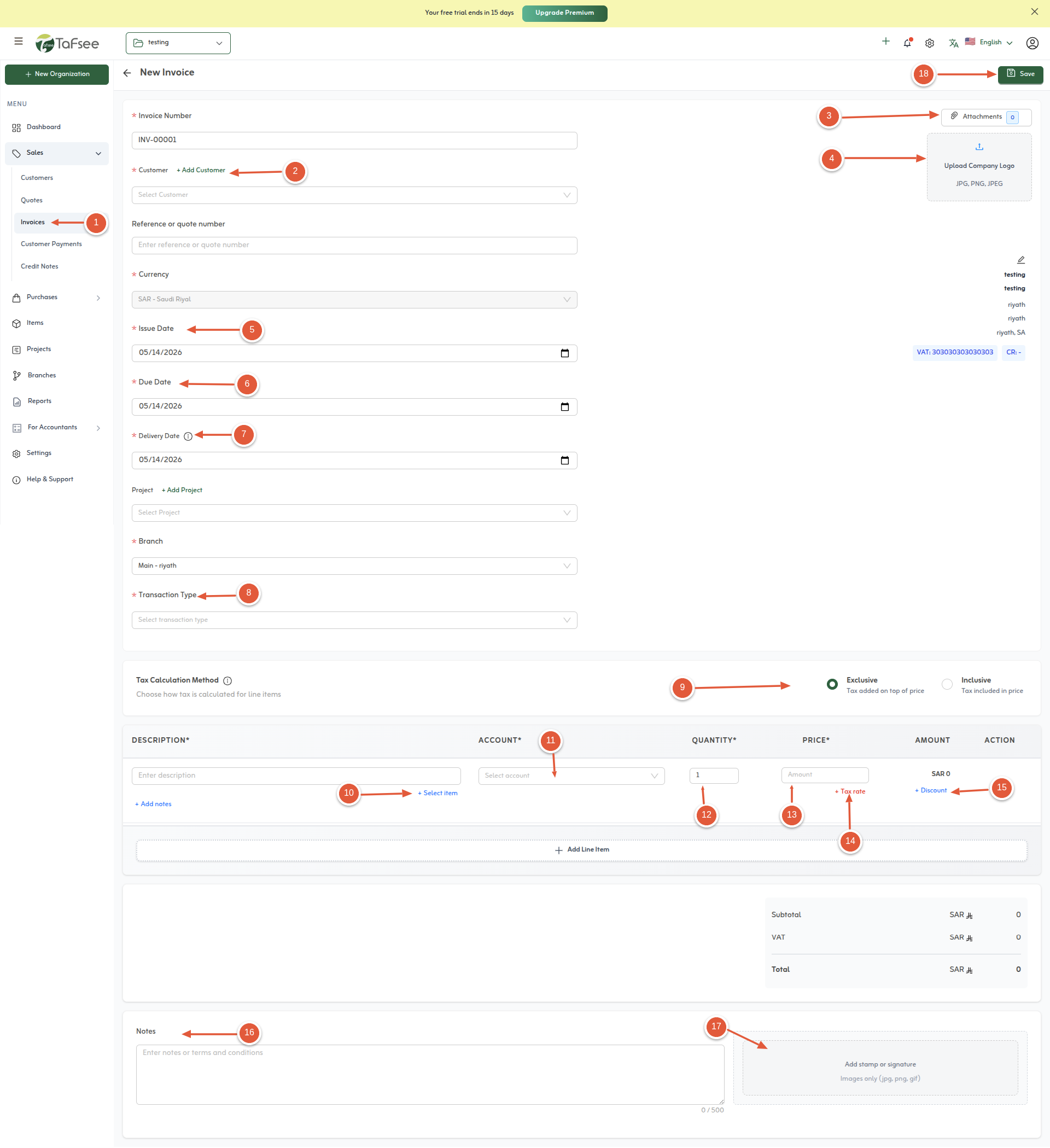
Follow these steps in the invoice form—the screenshot matches the Welcome guide flow.
- Open Sales, then choose Invoice to create a new customer invoice.
- Select the customer from your customer list.
- Add an attachment to the invoice when you need supporting documents.
- Upload your organisation logo so the PDF matches your brand.
- Set the invoice issue date.
- Set the due date.
- Set the delivery date when it applies to your fulfilment process.
- Select the transaction type—for example normal supply, export, or other options your setup provides.
- Choose whether tax is inclusive or exclusive on the document.
- Add line items in the items section (catalog items or entered details).
- Pick the revenue or account type for each line when your chart of accounts requires it.
- Set quantities for each line.
- Set unit prices for each line.
- Choose the tax rate treatment for each line—VAT on sales, zero-rated, exempt, or out of scope—as required.
- Apply line discounts using a percentage or a fixed amount.
- Add notes for the invoice (header, footer, or internal text as offered).
- Add a digital signature or stamp if your process requires it.
- Save the invoice to keep it as a draft or proceed to issue and send it according to your workflow.
After saving, review totals, VAT, and e-invoicing fields before sending to the customer. A draft lets you fix dates or lines without affecting receivables until you issue.
You can convert an accepted quote into an invoice to avoid re-entering lines. When payment arrives, record it using the payment guide in the next article.
Quick tips
- Confirm customer details and tax treatment before adding lines to avoid rework.
- Pick inclusive or exclusive tax to match how you quoted the deal.
- Upload your logo from the personalise guide if it does not appear on the PDF.