How the barcodes are numbered
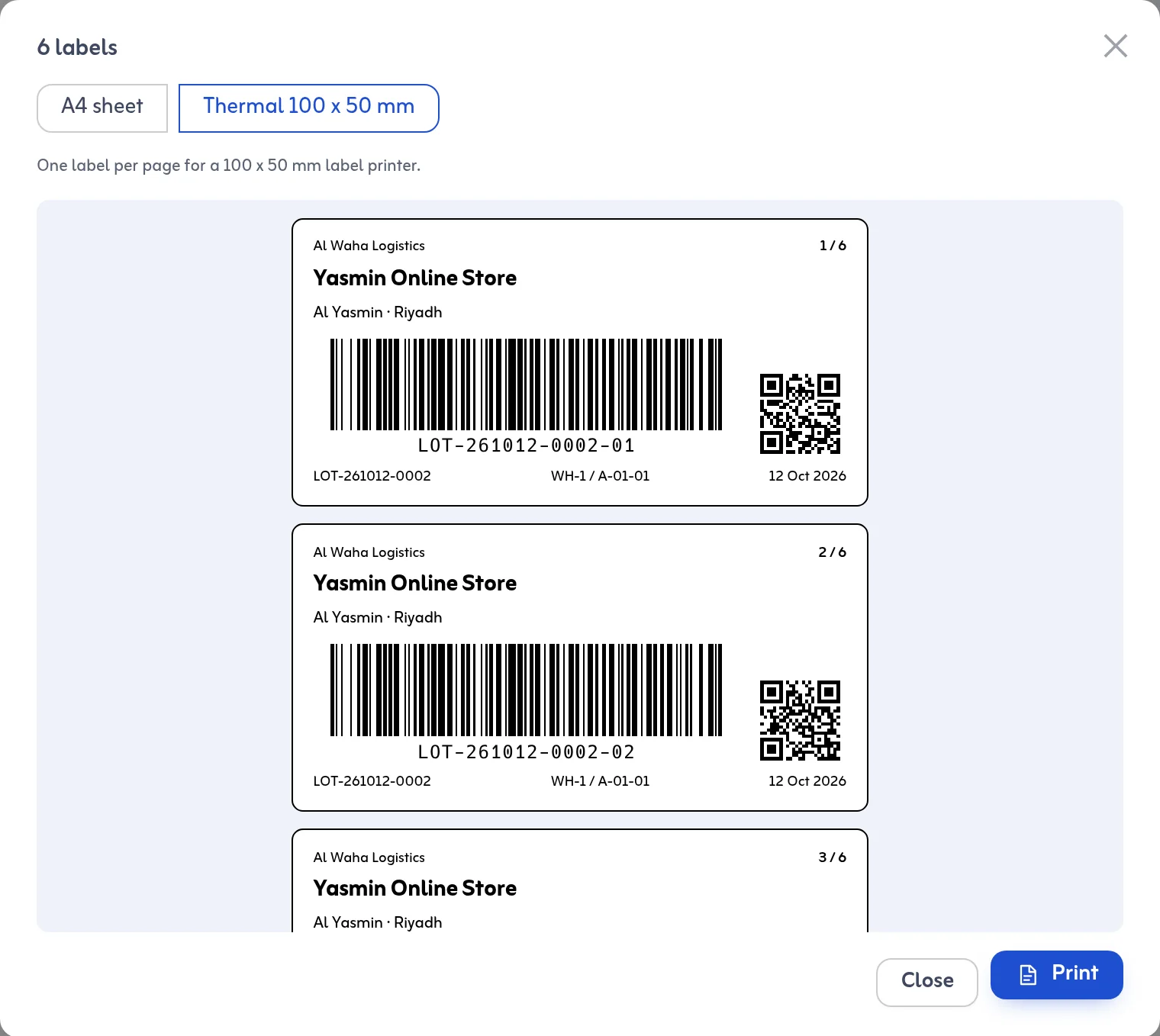
Each lot number is built from your prefix, the date and a daily sequence, for example LOT-251021-0001. Its packages are numbered after it: LOT-251021-0001-01, LOT-251021-0001-02 and so on. Change the prefix in Settings at any time; it affects new lots only, so labels already on the shelves stay valid.
Printing
Click Print labels on the success screen after an arrival, or on any lot's page. Choose an A4 sheet for an office printer or 100 × 50 mm labels for a thermal label printer; the size you use most can be set as the default in Settings. Reprint a single label when one is torn, or all labels of the lot.
Where the scan is used
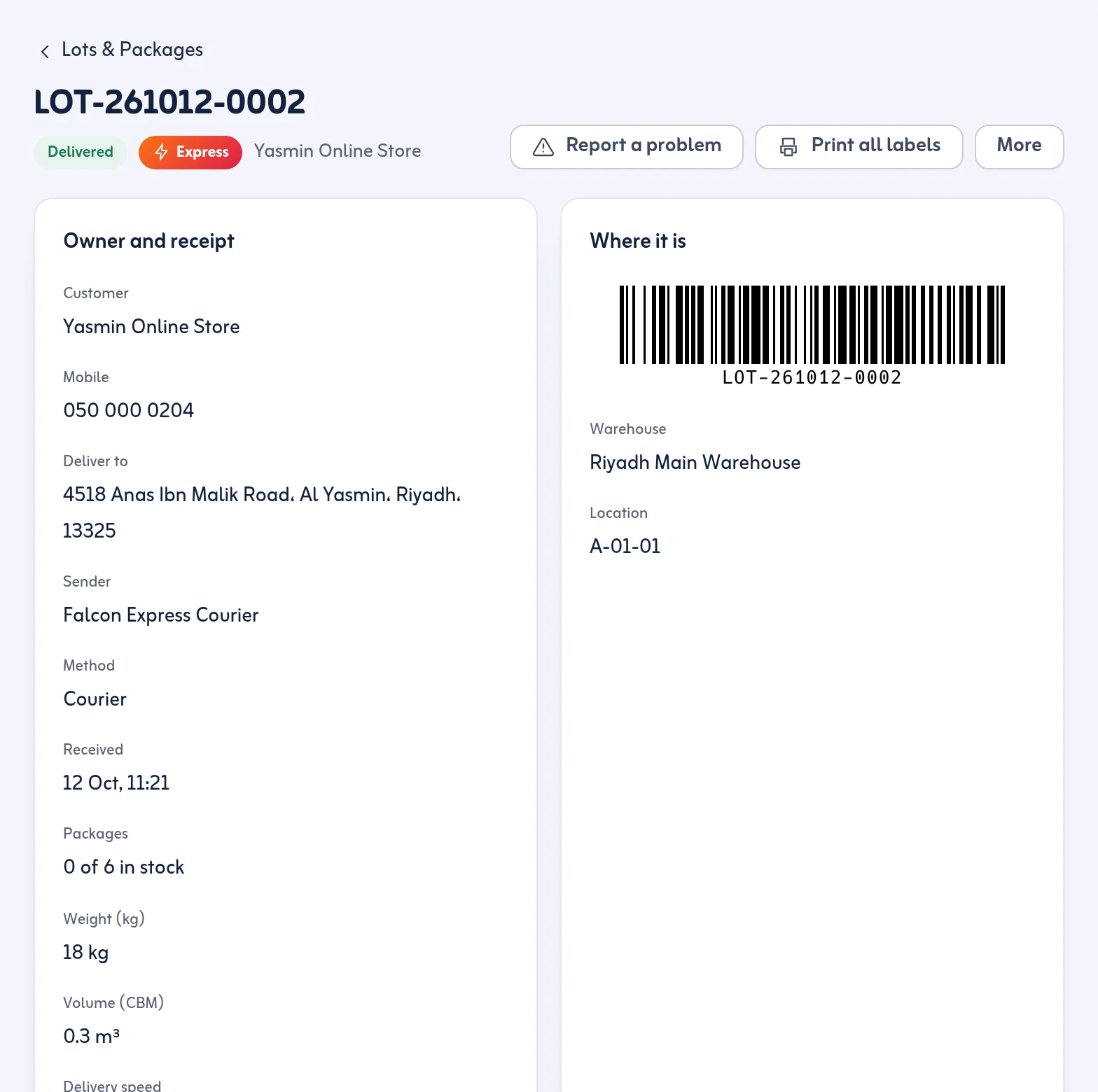
- Lots & Packages: scan any code to open its lot.
- Zones & Racks: scan a rack code to move a lot, or scan a rack's packages for a stock count.
- Delivery trips: scan each package onto the van; the trip starts only when all are loaded or the missing ones are taken off.
- Driver app: the driver scans packages at handover, so partial deliveries are exact.
- Returns: scan returned packages to put them back in stock.
Scanners and phones
A barcode scanner that behaves like a keyboard (types the code and presses Enter) works in every scan box; that is how most USB and Bluetooth scanners work out of the box. On phones, the camera scans where the browser supports it, so a driver or a storekeeper does not need extra hardware to start.
Barcode label printing software and a warehouse barcode scanner app in one
You do not need separate barcode label printing software: labels print from the browser. And because every scan box also accepts the phone camera, the app doubles as a warehouse barcode scanner app, so your team can scan packages with a phone camera when no handheld scanner is near.