

Give each person the access their job needs
Invite teammates by e-mail as Admin, Editor, Analyst or Viewer, and limit them to chosen websites. Alerts in the top bar tell you when a site goes quiet, a tool stops receiving leads or codes are running out.
- Roles from Owner to Viewer
- 5
- Roles from Owner to Viewer
- Kinds of alert in the bell
- 4
- Kinds of alert in the bell
- Access can be limited to chosen websites
- Per site
- Access can be limited to chosen websites
How it works
In Tafsee Popup, step by step
- 1
Invite
Send an e-mail link; the invite grants Tafsee Popup only.
- 2
Choose the role
Editors build and publish; analysts view and export leads; viewers look.
- 3
Limit to sites
Leave blank for all sites, or pick the ones they work on.
- 4
Watch the bell
Quiet websites, failing tools, low codes and plan limits arrive as alerts.
01
Roles that add up
Each role includes everything below it. The owner handles billing; admins do everything except deleting or handing over the organisation; editors create, edit and publish on every site and see leads; analysts see everything and export leads; viewers look.
- Only people who manage settings see and create API keys
- Only teammates who manage leads can erase a person's data
- Seats: Free 1, Starter 2, Growth 3, Pro 10, Business unlimited
More screens from the app
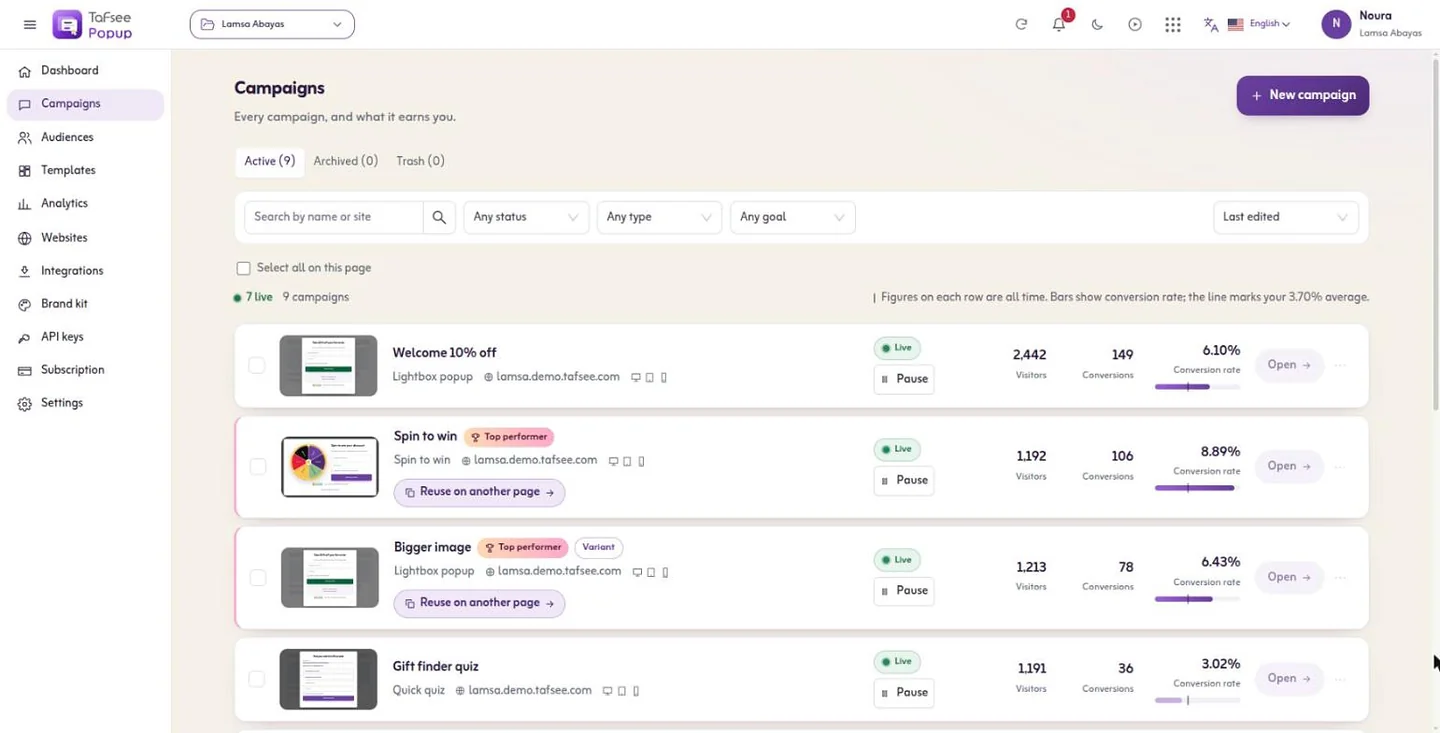
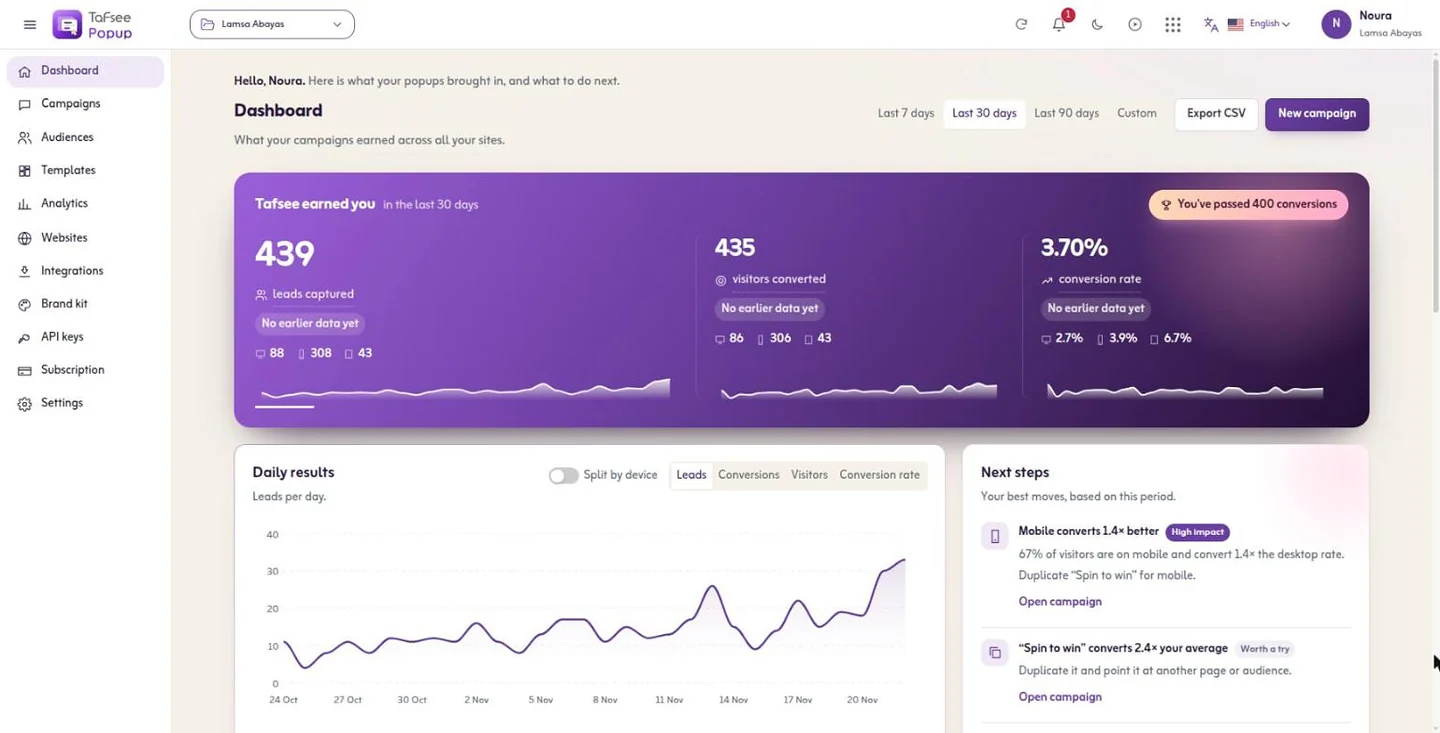
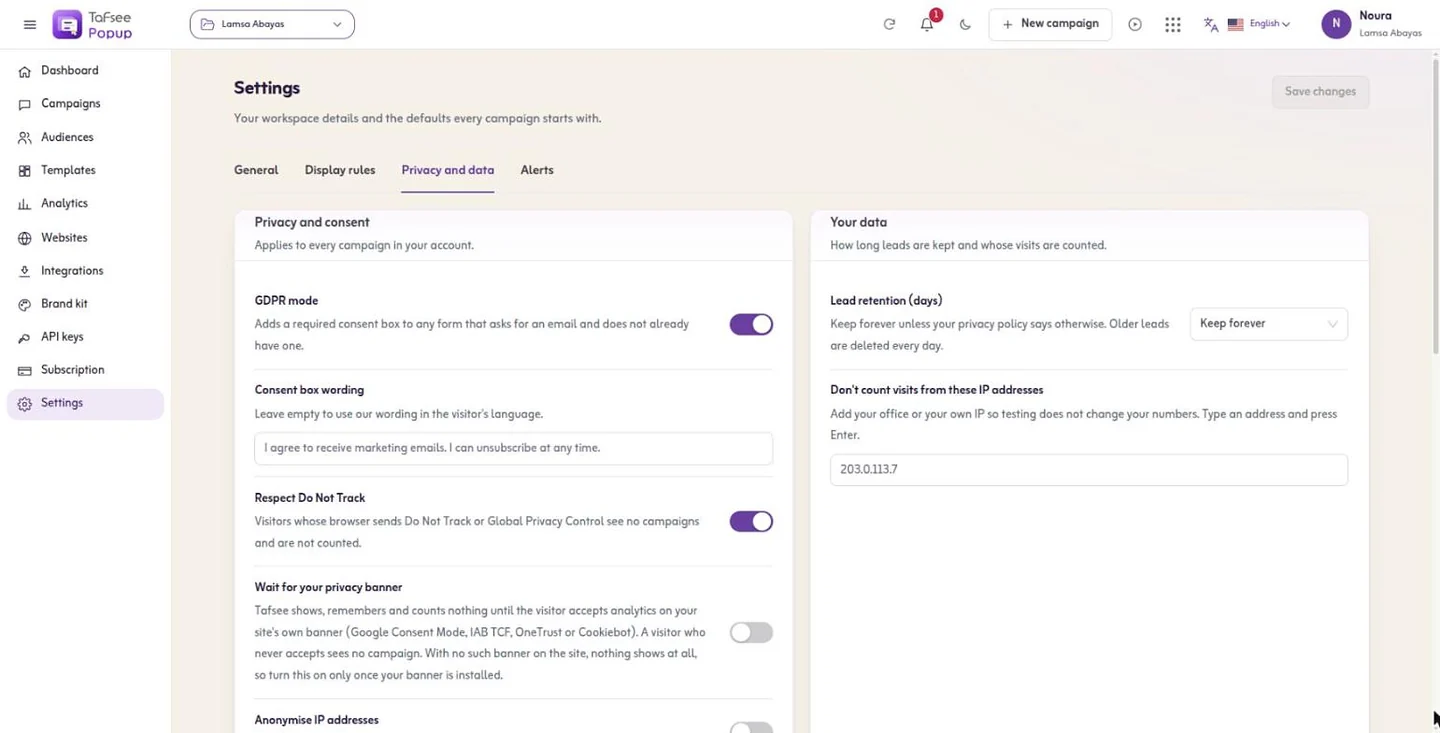
Captured from Tafsee Popup with a demo store.
Questions
Questions about Team, roles & alerts
No. A Popup invite grants Tafsee Popup only.
Your first popup can be live today
Start on the free plan, or try a paid plan free for 14 days. No card is needed.
- One line of code, any website
- Arabic and English, right to left
- Free plan, no card

Lead Generation
Tafsee Popup
Popups, spin-to-win wheels, countdown bars and exit-intent offers for any website — in English and native Arabic.