

Click any word on the popup and type
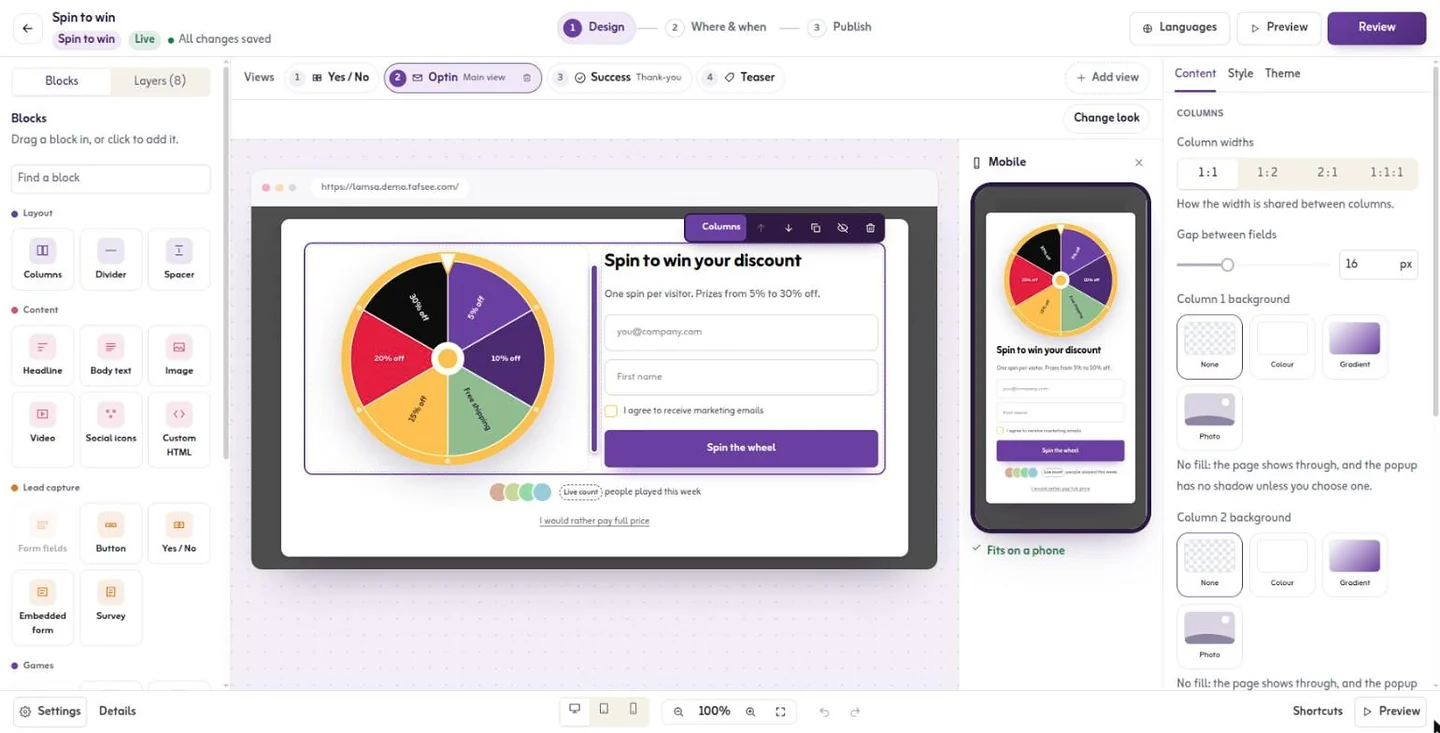
The editor shows the campaign on your own site's address with a phone preview beside it. Drag in blocks, type straight onto the canvas and every change saves as you work.
- Block types, from forms to games
- 24
- Block types, from forms to games
- Colour palettes, each passing WCAG AA
- 12
- Colour palettes, each passing WCAG AA
- Font pairs, four with Arabic
- 8
- Font pairs, four with Arabic
- Steps: Design, Where & when, Publish
- 3
- Steps: Design, Where & when, Publish
How it works
In Tafsee Popup, step by step
- 1
Add blocks
Drag a block in or click to add it: headline, image, video, form fields, countdown, discount code, product, social proof or a game.
- 2
Type on the canvas
Click a headline, text or button and type. Select words to make them bold, coloured or a link.
- 3
Check the phone
The phone preview updates as you edit. Width, padding and text size can differ on phones, and any block can be hidden there.
- 4
Add the next views
A yes/no question first, a thank-you after, a small teaser tab to reopen it, or a blank view of your own.
01
Blocks for every part of the job
Five groups of blocks cover layout, content, lead capture, games and persuasion. The form takes text, email, phone with a country-code picker, dropdowns, checkboxes, hidden fields and separate consent boxes for e-mail and for texts and WhatsApp.
- Countdown that restarts for each visitor, or ends on a fixed date
- Social proof from real sign-ups in the last 7 or 30 days, test leads left out
- Video from YouTube, Vimeo or MP4, and free stock photos in the image picker
- Paste the embed code of a Mailchimp or HubSpot form if you already have one
02
Motion that draws the eye, and a check that keeps it readable
Fifteen entry and exit animations, button nudges, moving backgrounds from confetti to Ramadan lanterns and headline effects are one click each. A readability check measures every text against WCAG AA and Fix all repairs the colours that fall short.
- Confetti on a win or sign-up, respecting visitors who turn motion off
- Undo, redo and keyboard shortcuts; a warning if a teammate saved after you
- Custom CSS and JavaScript for each campaign when you need them
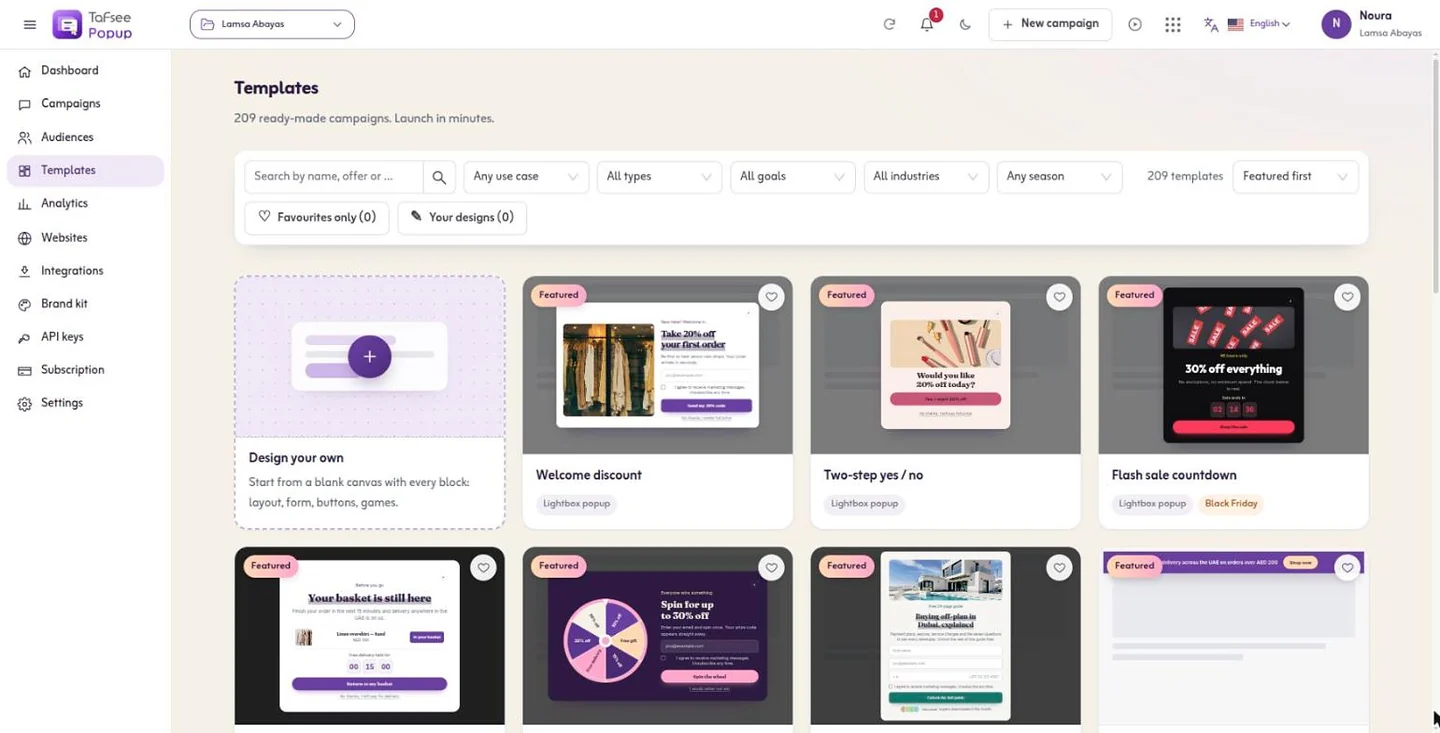
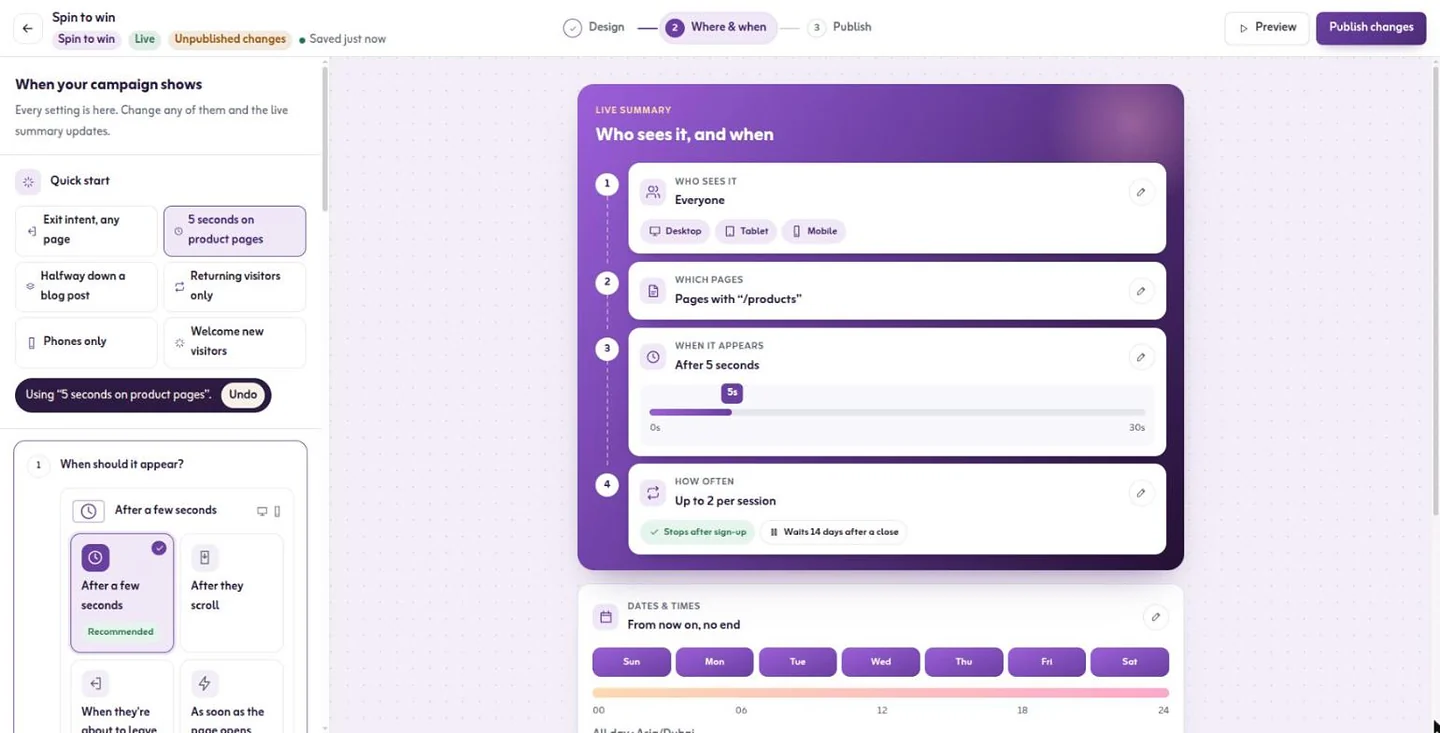
More screens from the app
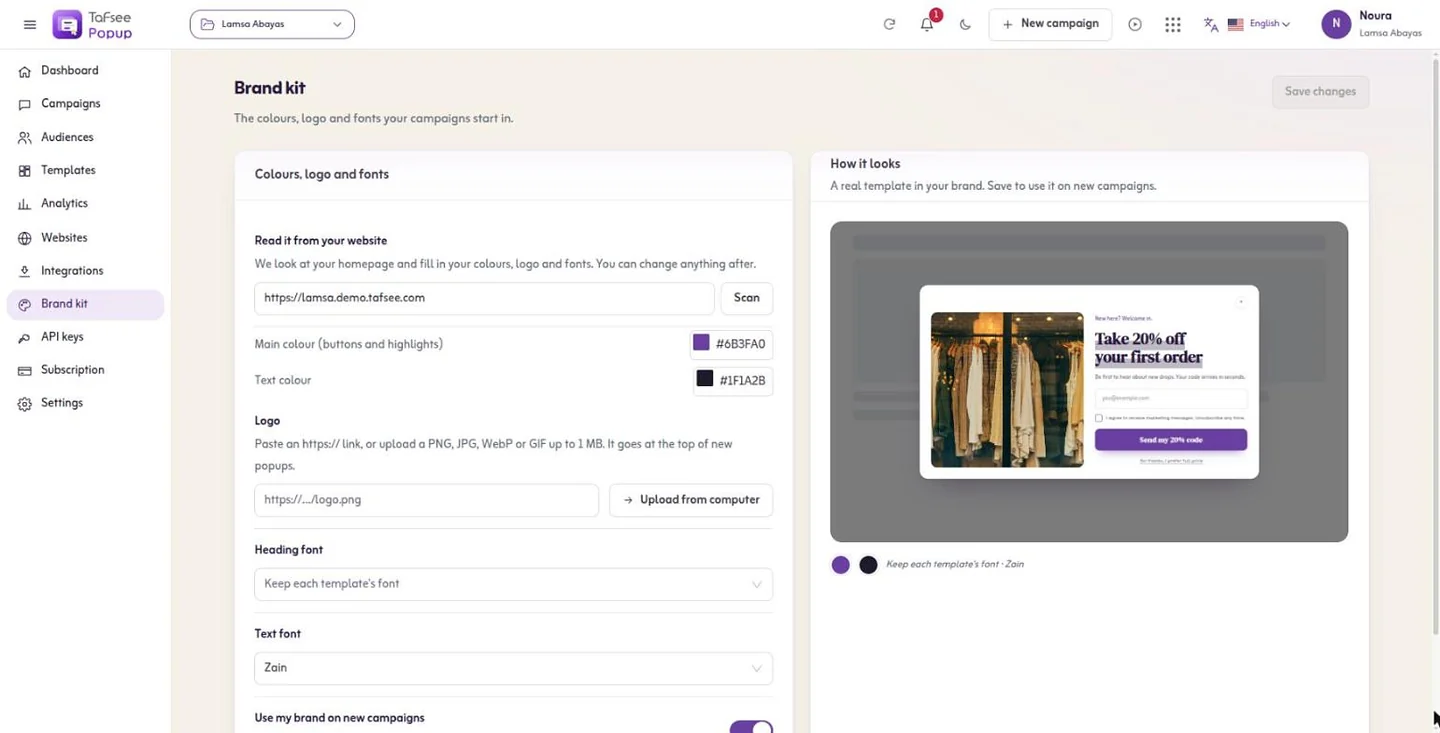
Captured from Tafsee Popup with a demo store.
Questions
Questions about Drag-and-drop editor
No. The install code goes on your site once; after that every campaign is built and published in the editor.
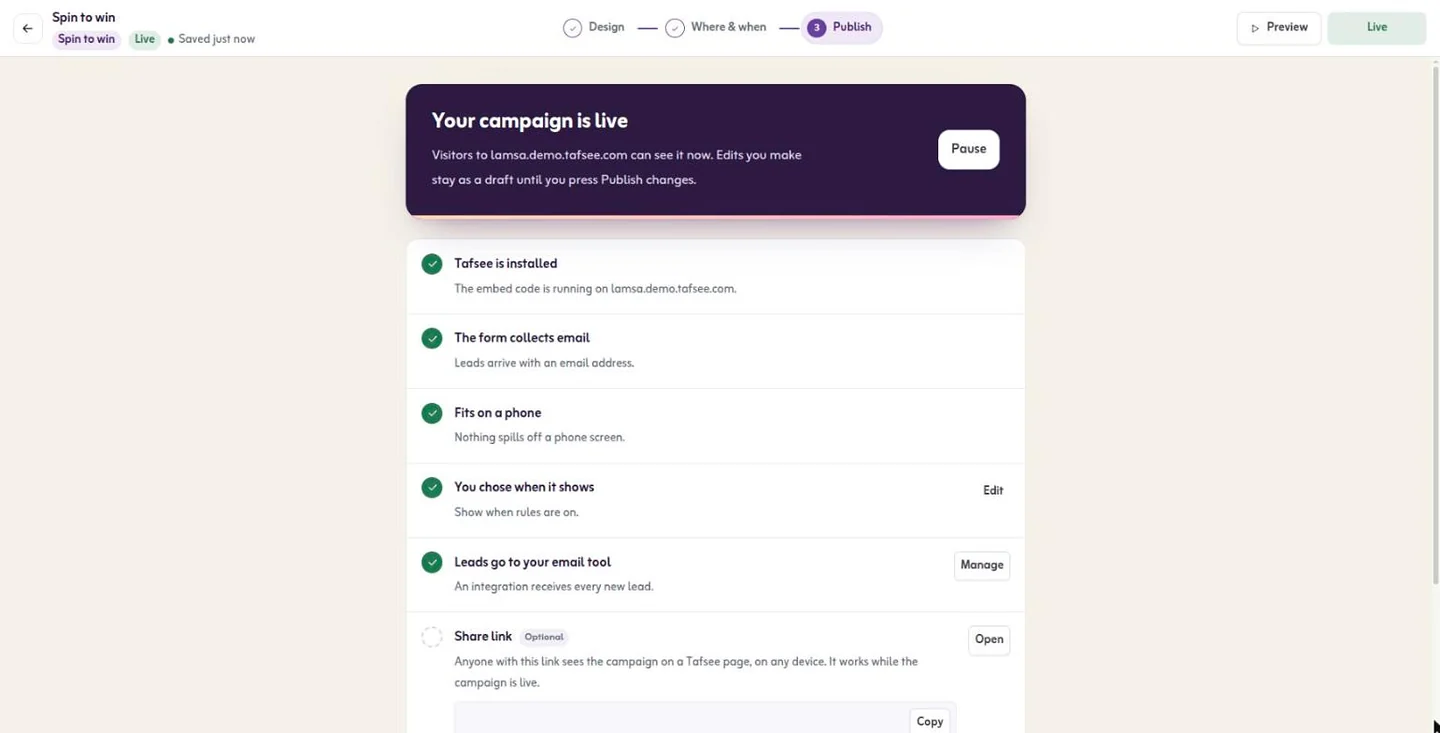
They stay as a draft. Visitors keep seeing the published version until you press Publish changes, or you discard the edits.
Yes. The phone preview sits beside the canvas, and the Publish step warns when something spills off a phone screen.
Your first popup can be live today
Start on the free plan, or try a paid plan free for 14 days. No card is needed.
- One line of code, any website
- Arabic and English, right to left
- Free plan, no card

Lead Generation
Tafsee Popup
Popups, spin-to-win wheels, countdown bars and exit-intent offers for any website — in English and native Arabic.